Editing a PDF template
This page isn't usually needed for the group you picked under Viewing as. It's shown because you opened it directly.
The template editor lets you design the finalized report: where the patient name goes, the physician’s interpretation, your logo, and so on.
Open it from PDF Templates by selecting Edit on a template.
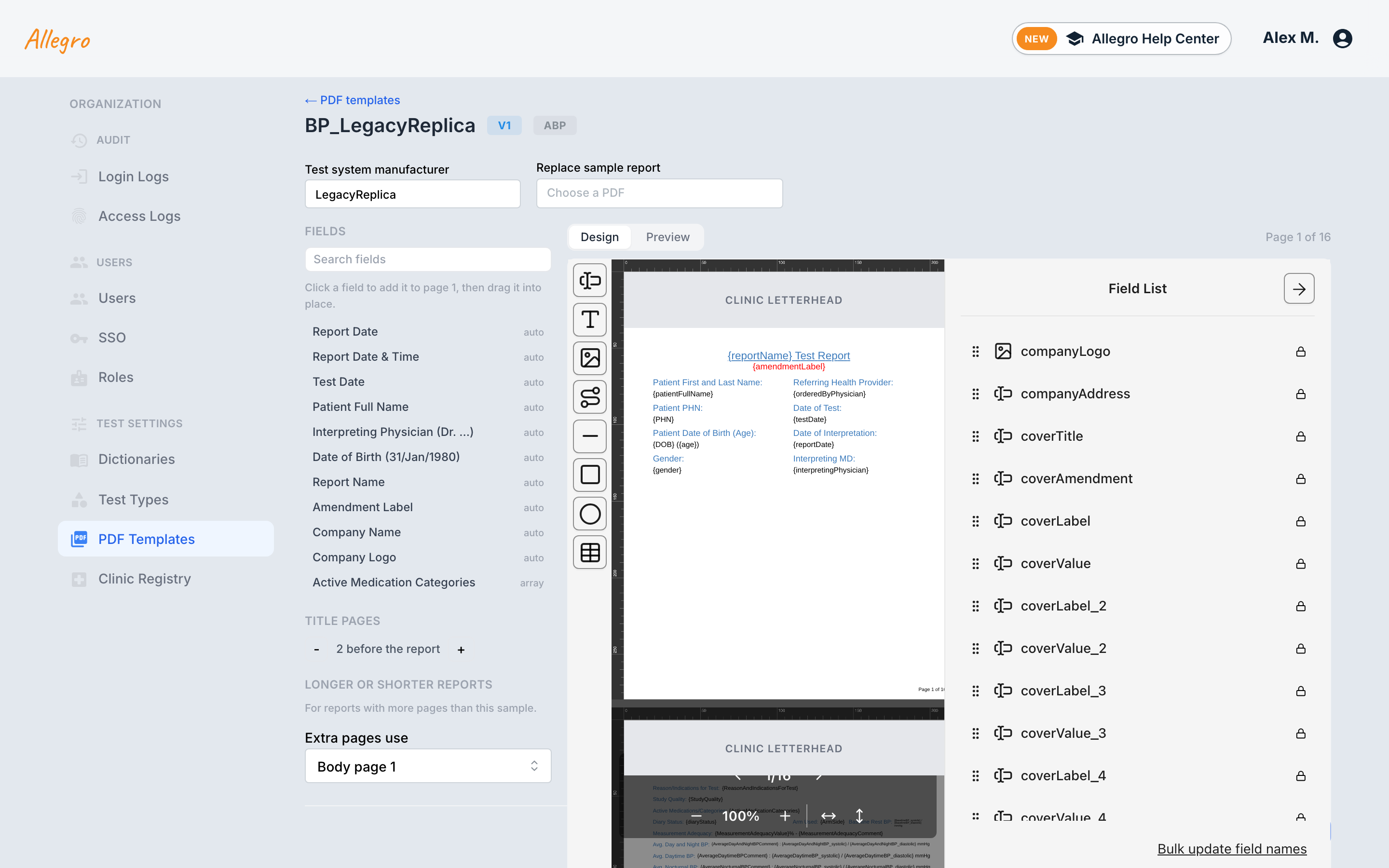
The parts of the editor
Section titled “The parts of the editor”| Area | What it’s for |
|---|---|
| ← PDF templates | Back to the list. |
| Name, V1 and test-type badges | Which template you’re editing and its version. |
| Test system manufacturer | The device maker. |
| Replace sample report | Swap the background PDF you design on. |
| Fields (left) | Everything you can place on the report. |
| Title pages | How many pages come before the device report (cover, results). Use − and +. |
| Longer or shorter reports → Extra pages use | Which page design to repeat when a real report has more pages than the sample. |
| Design / Preview | Switch between editing and seeing the result. |
| Save changes | Save your work. |
Add a field to the report
Section titled “Add a field to the report”-
In Fields, find the field. Use Search fields to filter, for example Patient.
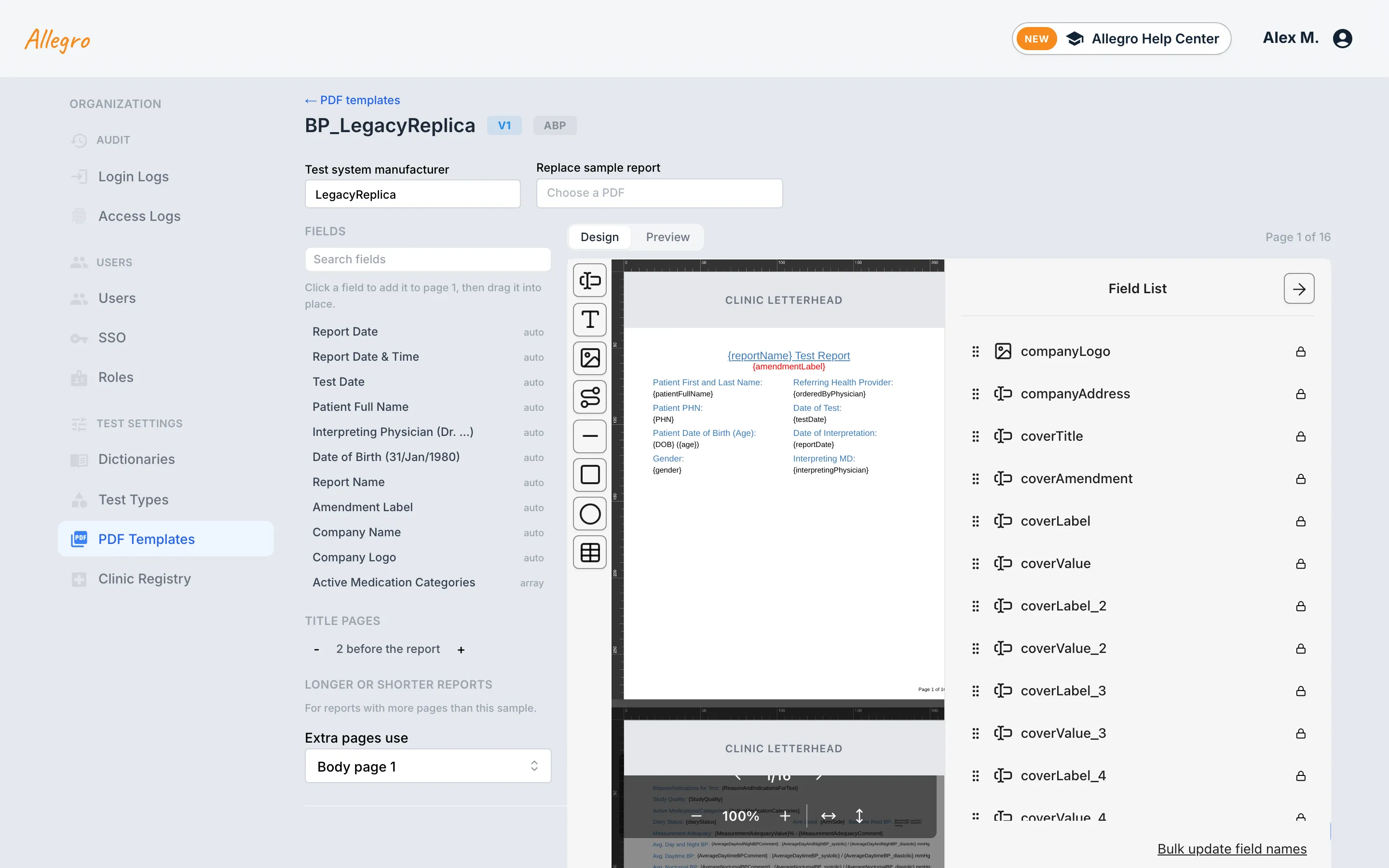
The fields you can place -
Select the field. It’s added to page 1.
-
Drag it where you want it, and drag its corners to resize.
-
Select Save changes.
Field types
Section titled “Field types”- auto: filled in by Allegro, for example Report Date, Patient Full Name, Interpreting Physician, Date of Birth, Company Name and Company Logo.
- array: a list, for example Active Medication Categories. Each item prints on its own line.
Add or remove title pages
Section titled “Add or remove title pages”Under Title pages, select + to add a page before the report, or − to remove one.
Preview
Section titled “Preview”Select Preview to see the report filled with sample data.
Messages you may see
Section titled “Messages you may see”| Message | Means |
|---|---|
| The built-in template can’t be edited. | Create a New template with Start with the standard pages ticked instead. |
| This template is archived. Unarchive it to edit. | Go back and select Unarchive. |
| You can view this template but not change it. | You have view-only permission. |
| This template has no sample report yet. | Choose a PDF under Replace sample report to start. |
Put it into use
Section titled “Put it into use”Saving doesn’t change live reports. When you’re happy with it, assign the template to its test type.