Disabling or re-enabling a user
This page isn't usually needed for the group you picked under Viewing as. It's shown because you opened it directly.
When someone leaves or shouldn’t have access any more, disable their account. Their history stays in Allegro, but they can’t sign in.
Disable a user
Section titled “Disable a user”-
Go to Organization Settings → Users.
-
Select the pencil ✏️ next to the person’s roles.
-
In the window, select Disable user (bottom-left, in red).
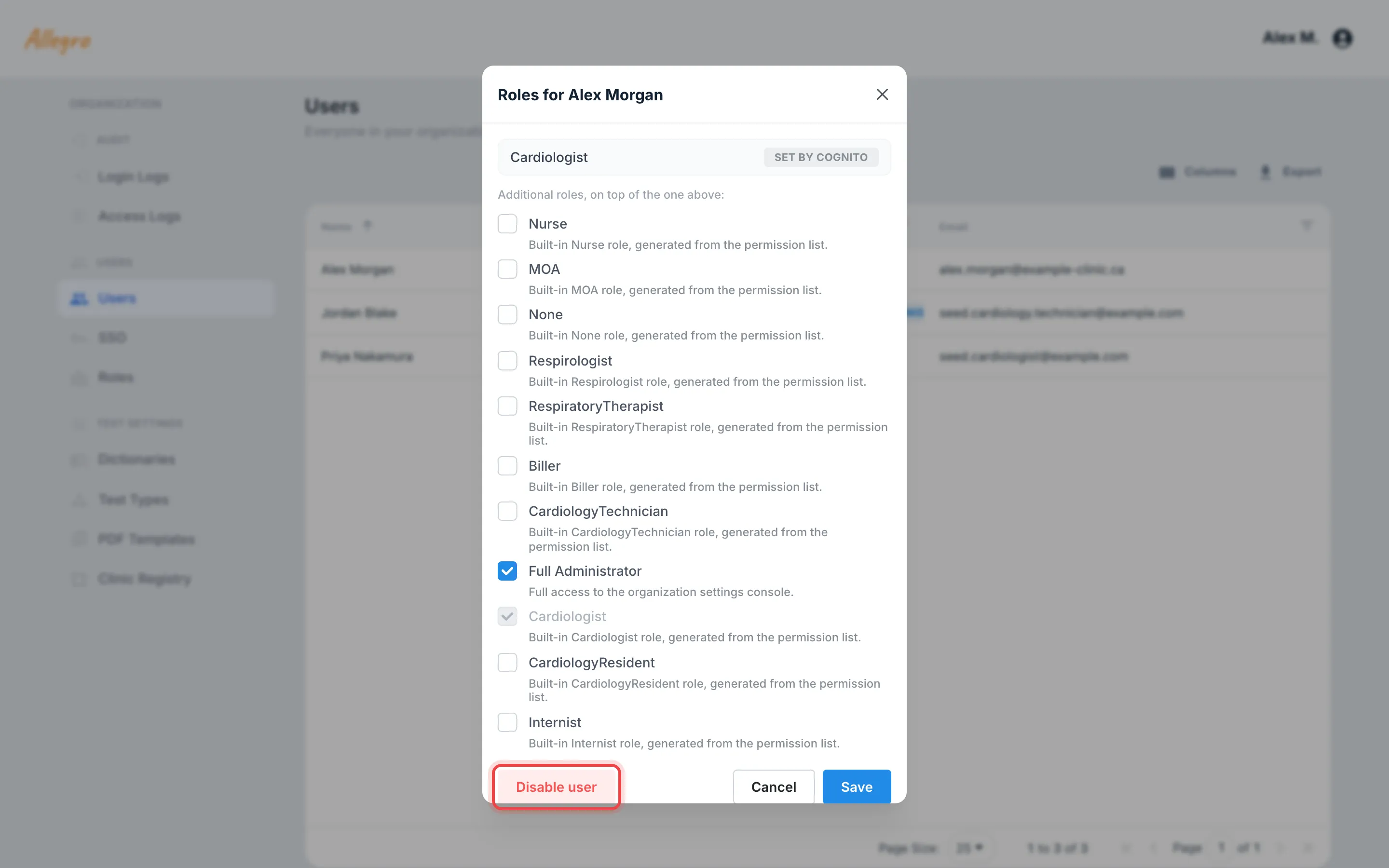
Disable user -
The window closes. The person now shows a red Disabled badge.
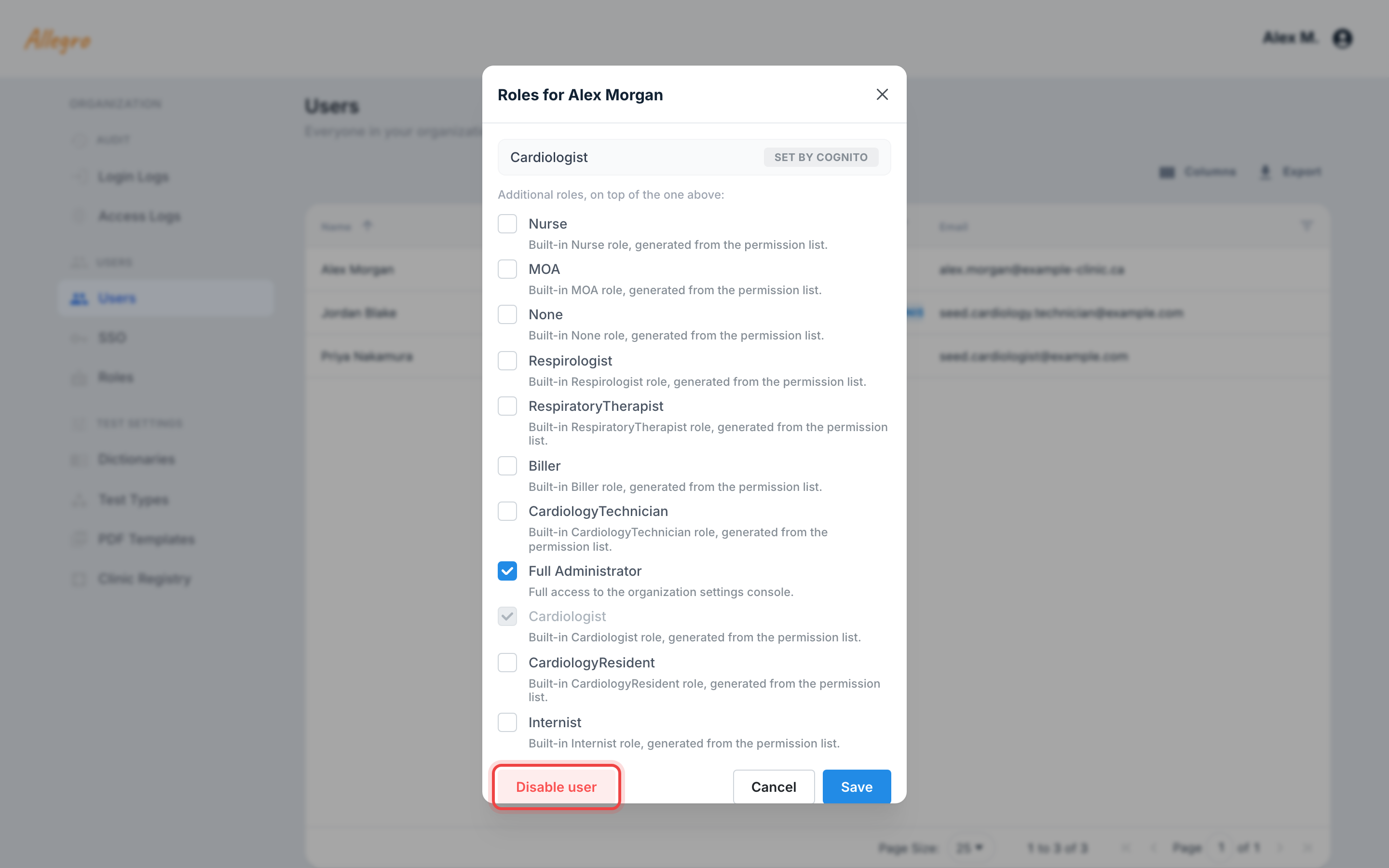
Re-enable a user
Section titled “Re-enable a user”Follow the same steps. The button now says Enable user.
Why disable instead of delete?
Section titled “Why disable instead of delete?”Allegro keeps a full audit trail. Disabling keeps the person’s name on the tests they prepared, reviewed or signed, and in the access logs.