PDF templates
This page isn't usually needed for the group you picked under Viewing as. It's shown because you opened it directly.
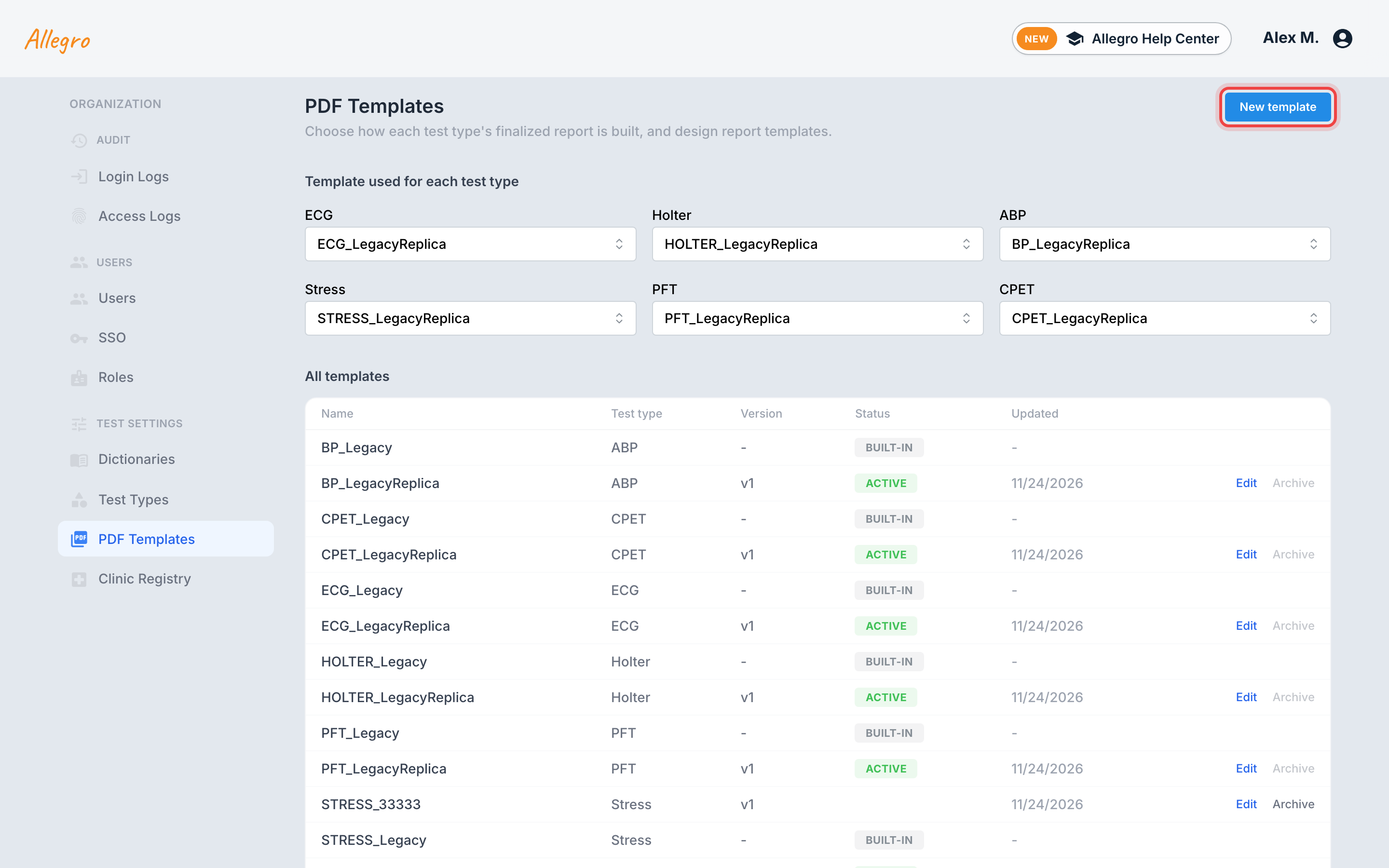
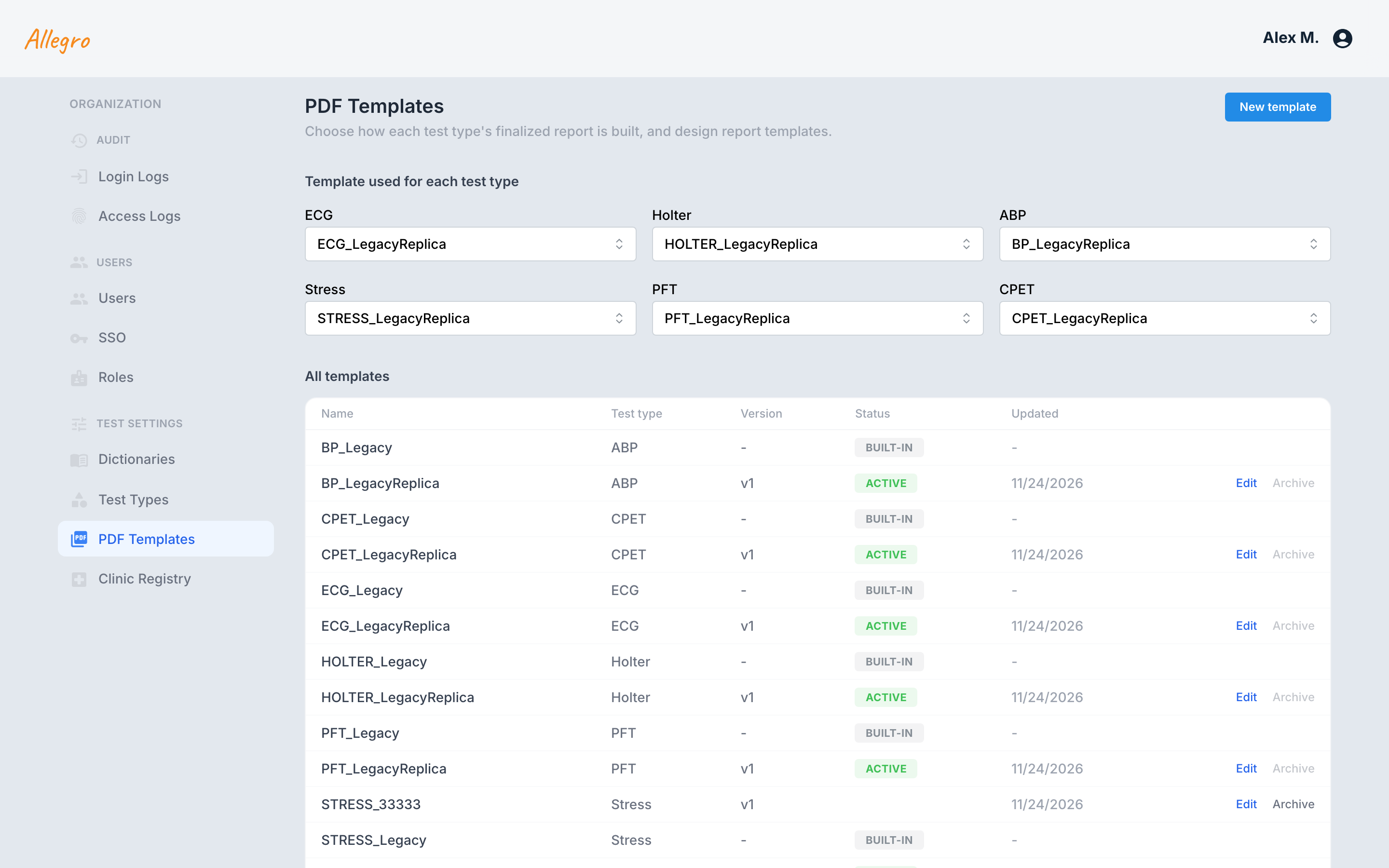
When a physician finalizes a test, Allegro builds the official report from a PDF template. Here you choose which template each test type uses, and create new ones.
Choose the template for each test type
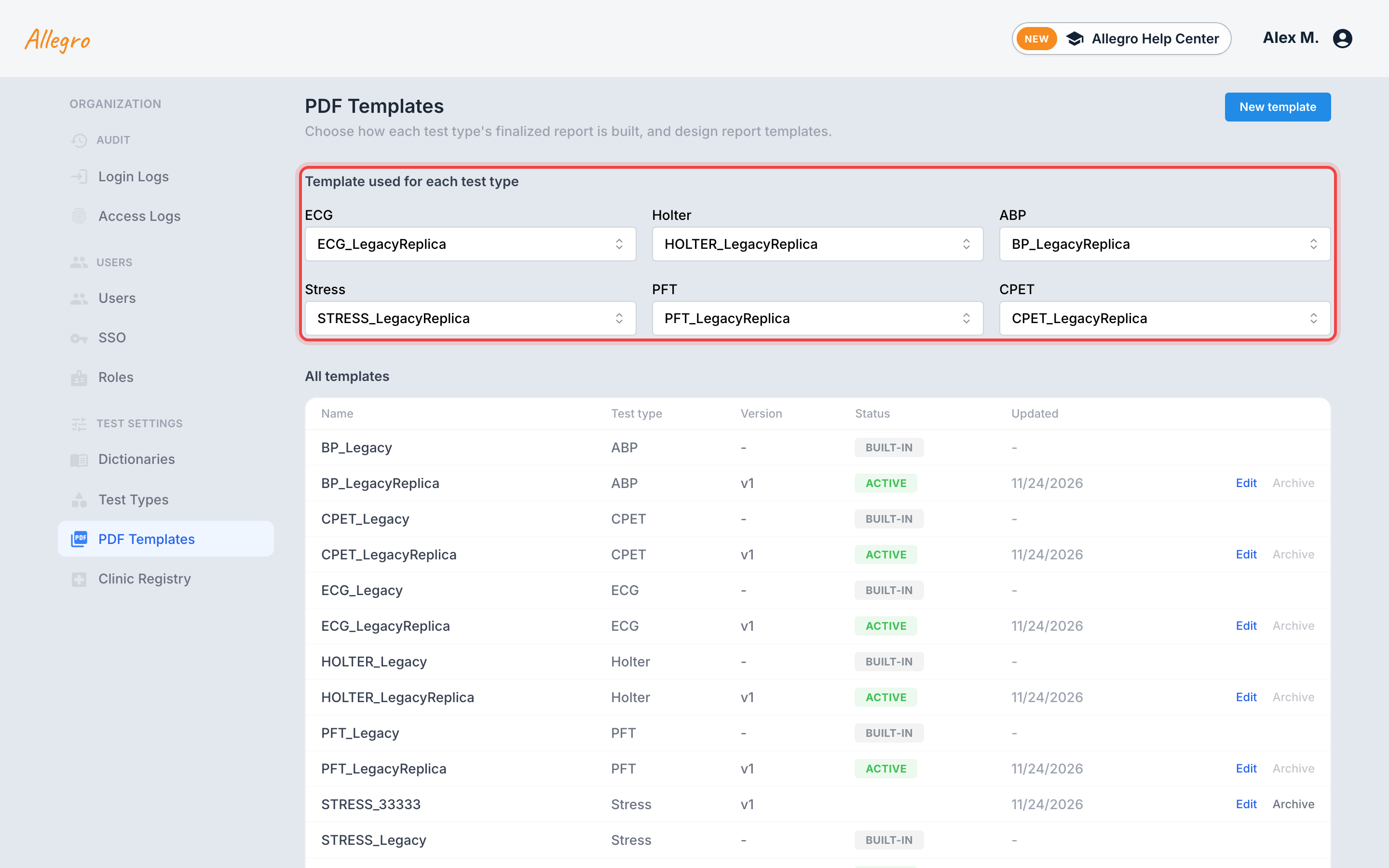
Section titled “Choose the template for each test type”Under Template used for each test type there’s one box per test type.
-
Select the box for the test type, for example Holter.
-
Pick a template.
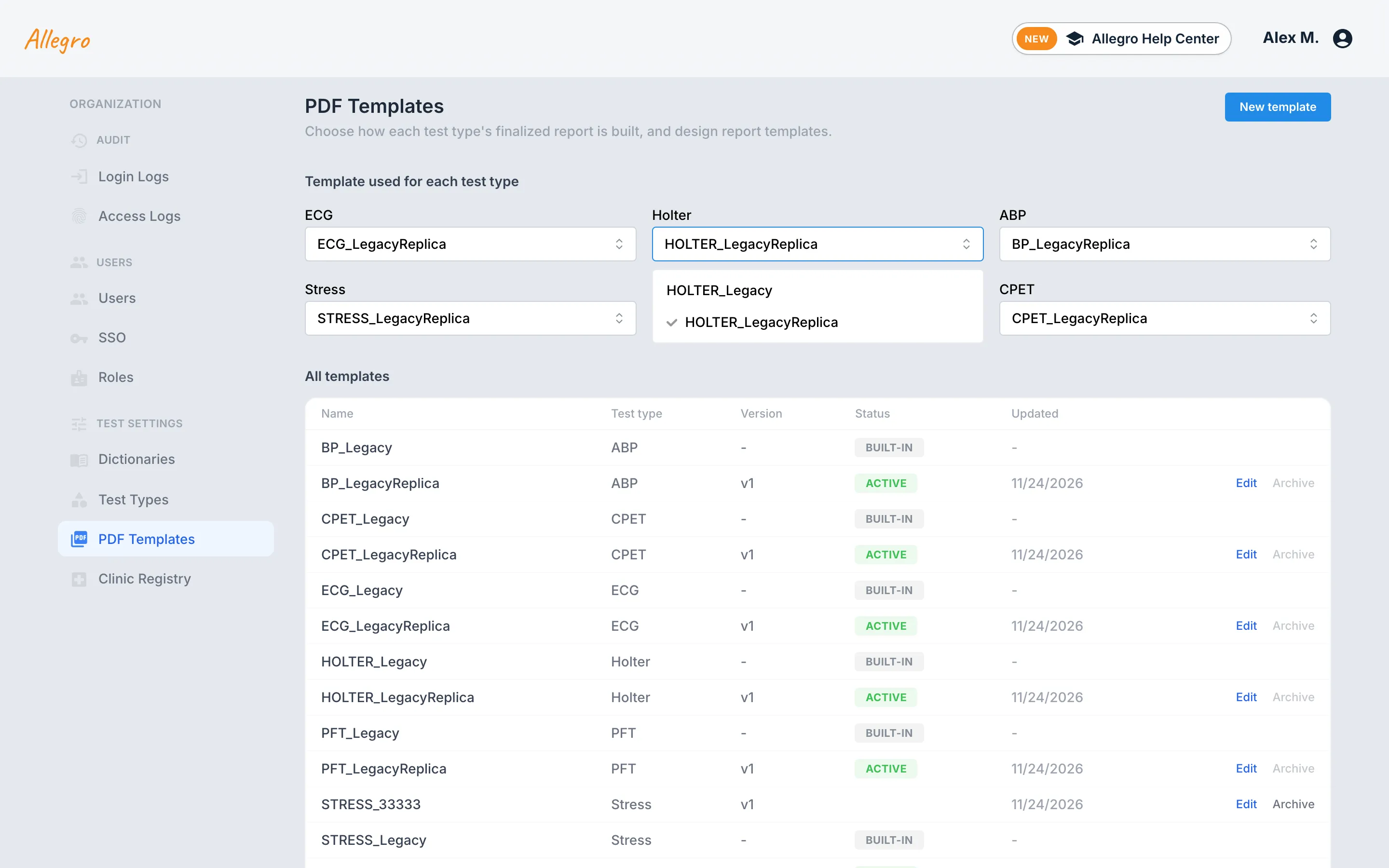
Choosing a template -
It saves straight away (you’ll briefly see Saving…). All new reports for that test type use it.
The template list
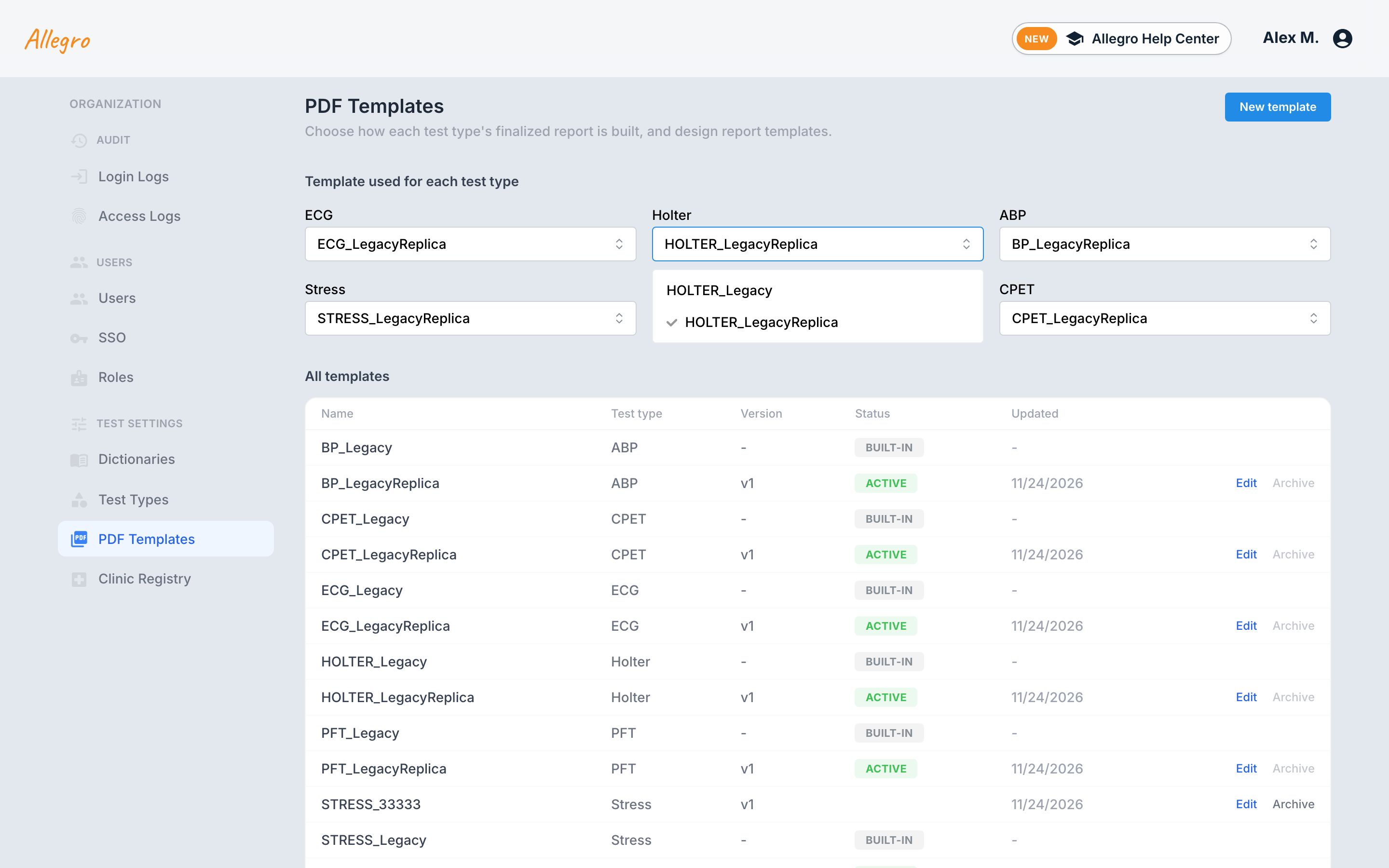
Section titled “The template list”All templates lists every template:
| Status | Means |
|---|---|
| BUILT-IN | Allegro’s original layout. Can’t be edited or archived. |
| ACTIVE | Currently used by a test type. |
| (blank) | Not used right now. |
| Archived | Hidden from the pickers. Select Unarchive to bring it back. |
Row actions:
- Edit: open the template editor.
- Archive: hide a template you no longer use. You can’t archive an active template. Assign another one first.
Create a new template
Section titled “Create a new template”-
Select New template (top-right).
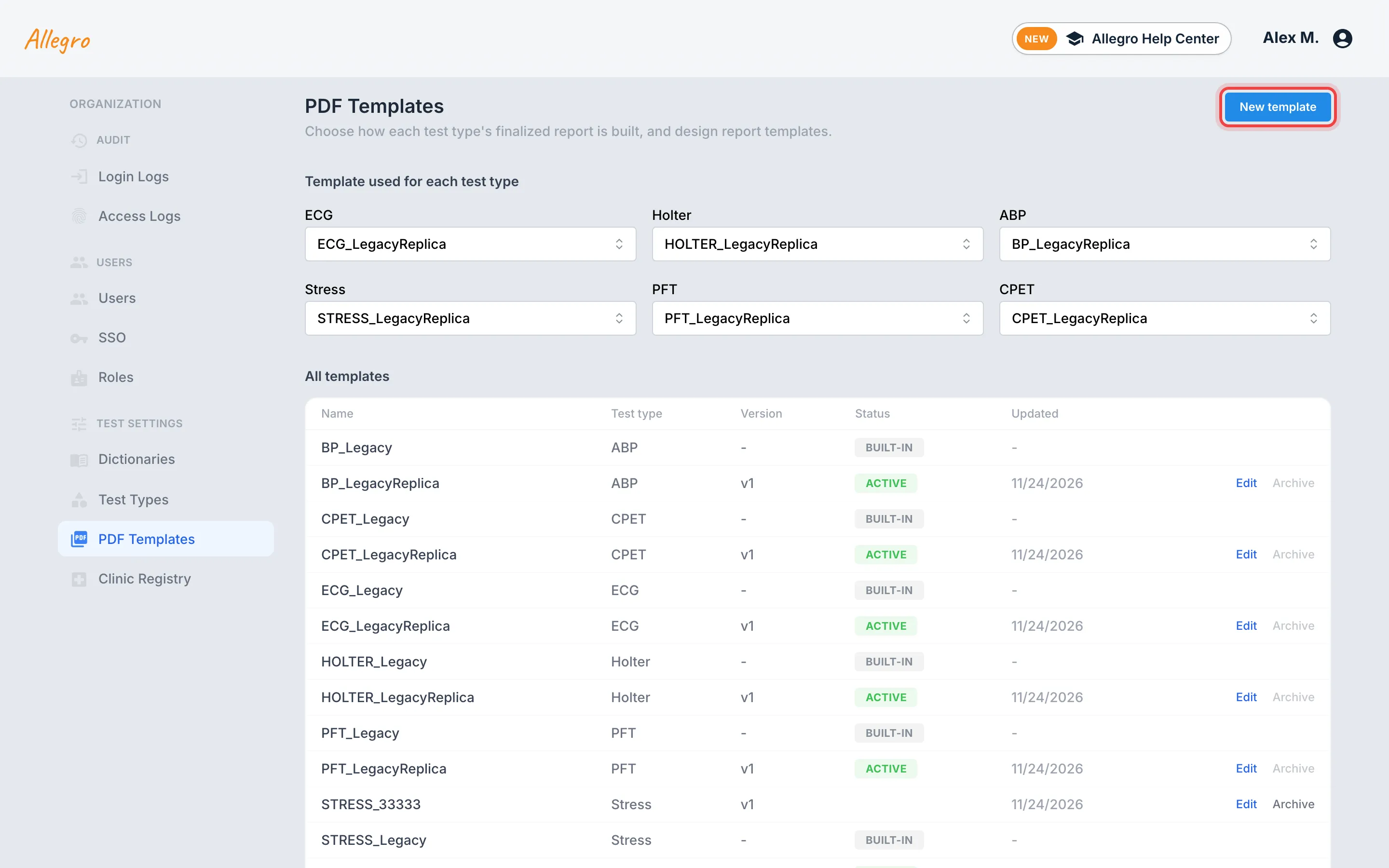
New template -
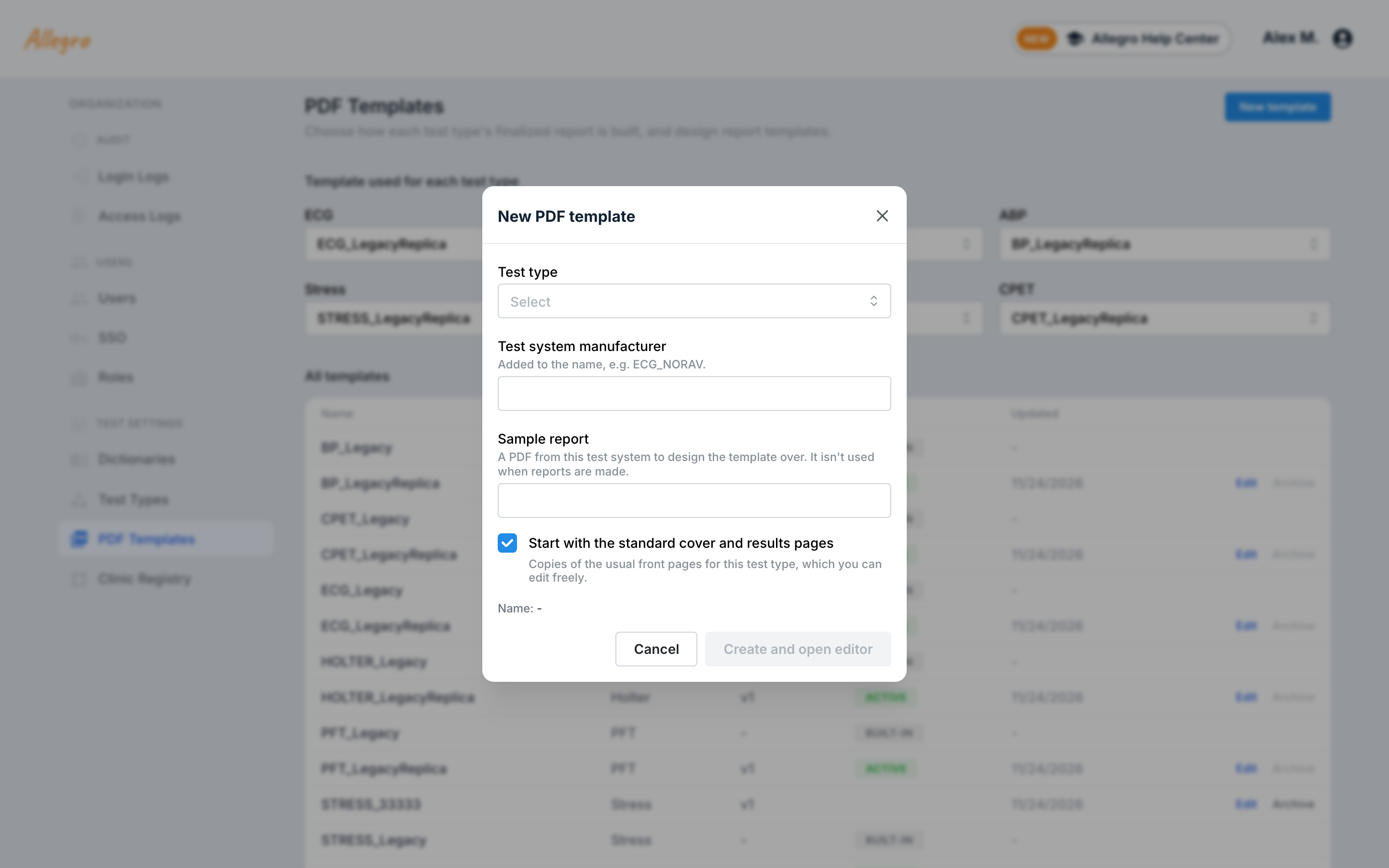
Fill in New PDF template:
- Test type: which test this template is for.
- Test system manufacturer: the device maker, added to the name (for example NORAV → ECG_NORAV). Letters and digits only.
- Sample report: a real PDF from this device to design on. It’s only a background for designing and isn’t used in real reports.
- Start with the standard cover and results pages: leave this ticked to copy Allegro’s usual front pages, which you can then change.
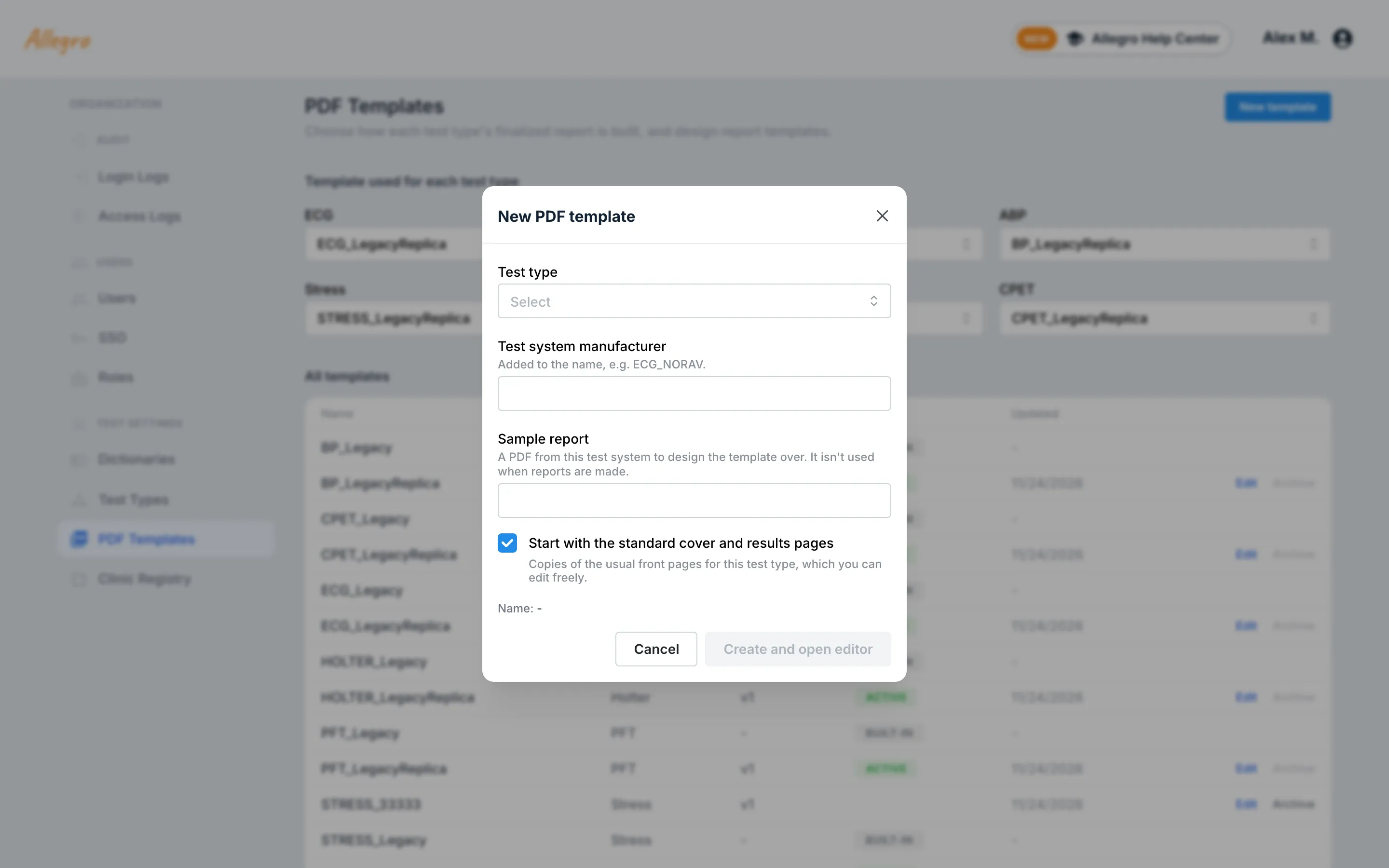
New PDF template -
Select Create and open editor.