Inviting users
This page isn't usually needed for the group you picked under Viewing as. It's shown because you opened it directly.
How you add people depends on how your organization signs in. Check Organization Settings → SSO first. See Single sign-on.
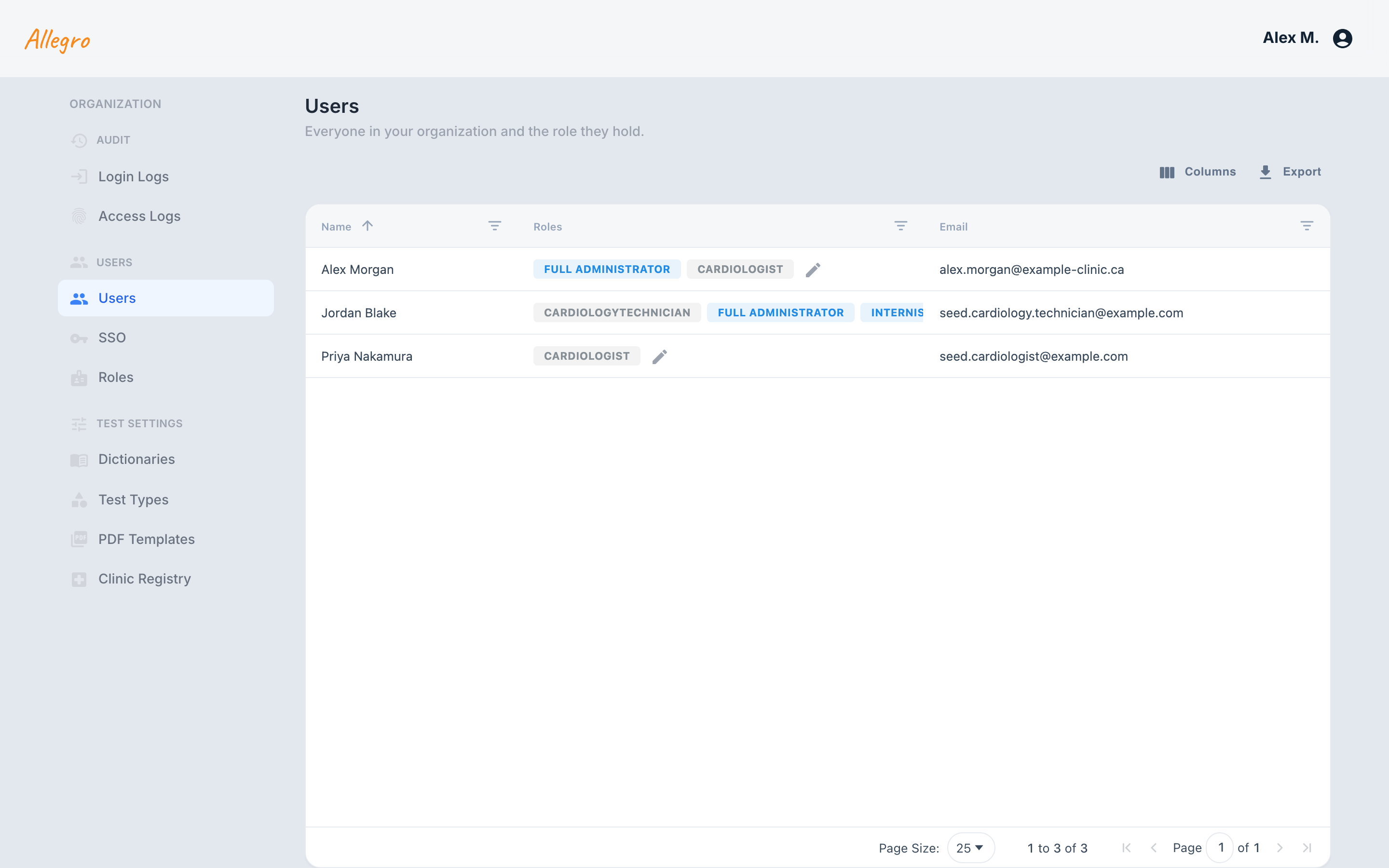
When SSO is on, you don’t invite people in Allegro. There’s no Add user button.
-
Make sure the person has an account in your organization’s identity system (for example Microsoft Entra / Azure AD), and that they’re allowed to use the Allegro app there. Your IT team does this.
-
Send them the Allegro link and ask them to sign in with their work account.
-
The first time they sign in, Allegro creates their account automatically.
-
They now appear on the Users page. Give them a role if they need more than the default.
-
Go to Organization Settings → Users.
-
Select Add user (top-right).
Screenshot coming soon: admin/users-add-buttonThe Add user button -
Fill in the Add a user form:
- Email (required). This becomes their username.
- First name and Last name
- Built-in role (required). Choose their main job, for example Cardiologist or MOA.
Screenshot coming soon: admin/users-add-dialog-filledAdd a user -
Select Add user.
-
Allegro emails them a temporary password. The subject is “Your Allegro account with your organization*”*.
If something goes wrong
Section titled “If something goes wrong”| Message | What to do |
|---|---|
| Enter a valid email address | Check for typos, for example a missing @ or .ca. |
| The person already exists | They’re already in Allegro. Find them in the list and edit their roles. |
| They didn’t get the email | Ask them to check junk/spam. Temporary passwords expire after a few days. If it’s expired, delete and re-add them, or contact support. |
What the new user does
Section titled “What the new user does”Send them to Your first sign-in.
Find someone in the list
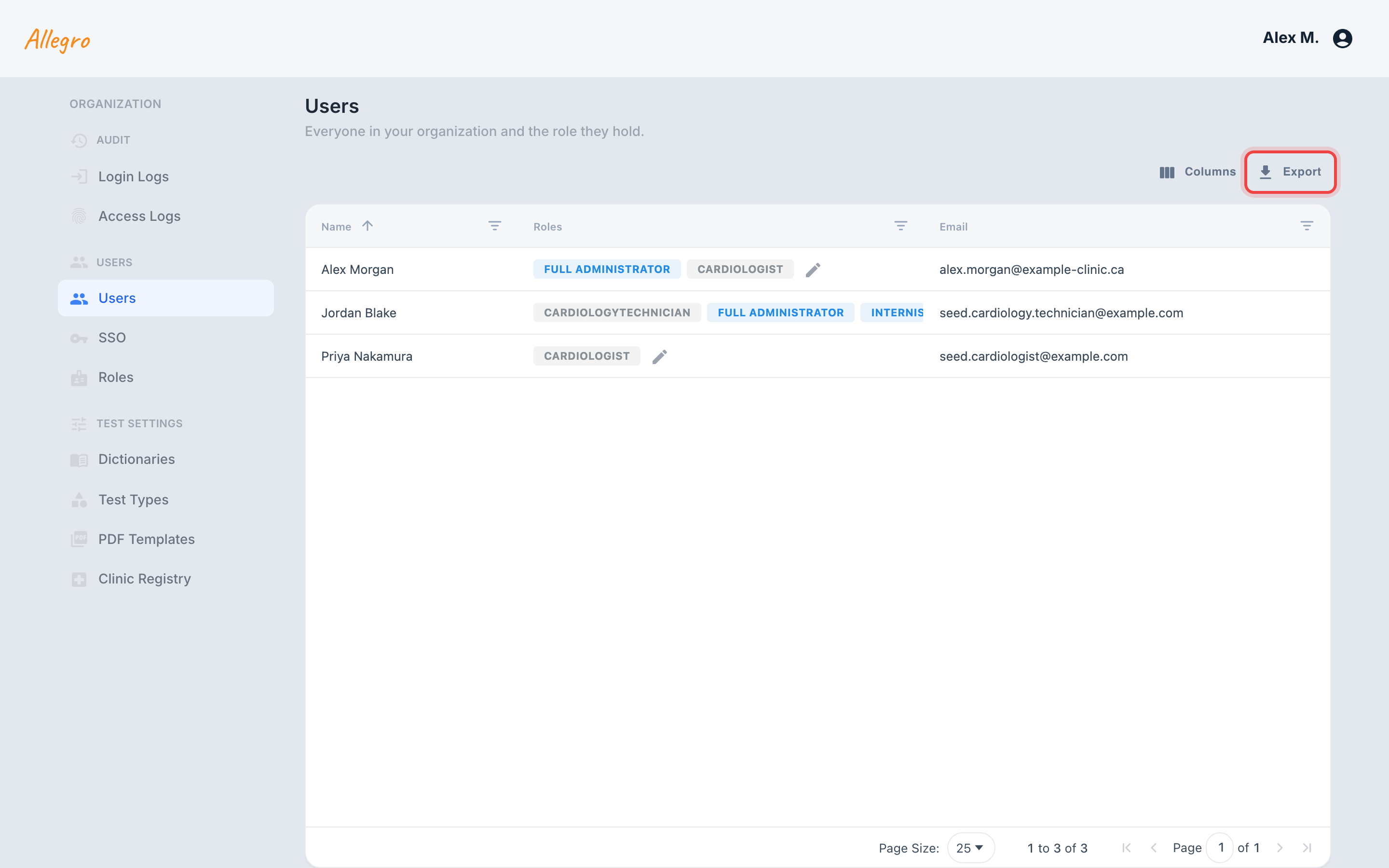
Section titled “Find someone in the list”- Sort by Name or Email by selecting the column header.
- Use the filter icon on a column to search.
- Export downloads everyone as a CSV.