Finding, sorting and exporting tests
This page isn't usually needed for the group you picked under Viewing as. It's shown because you opened it directly.
Filter by physician
Section titled “Filter by physician”-
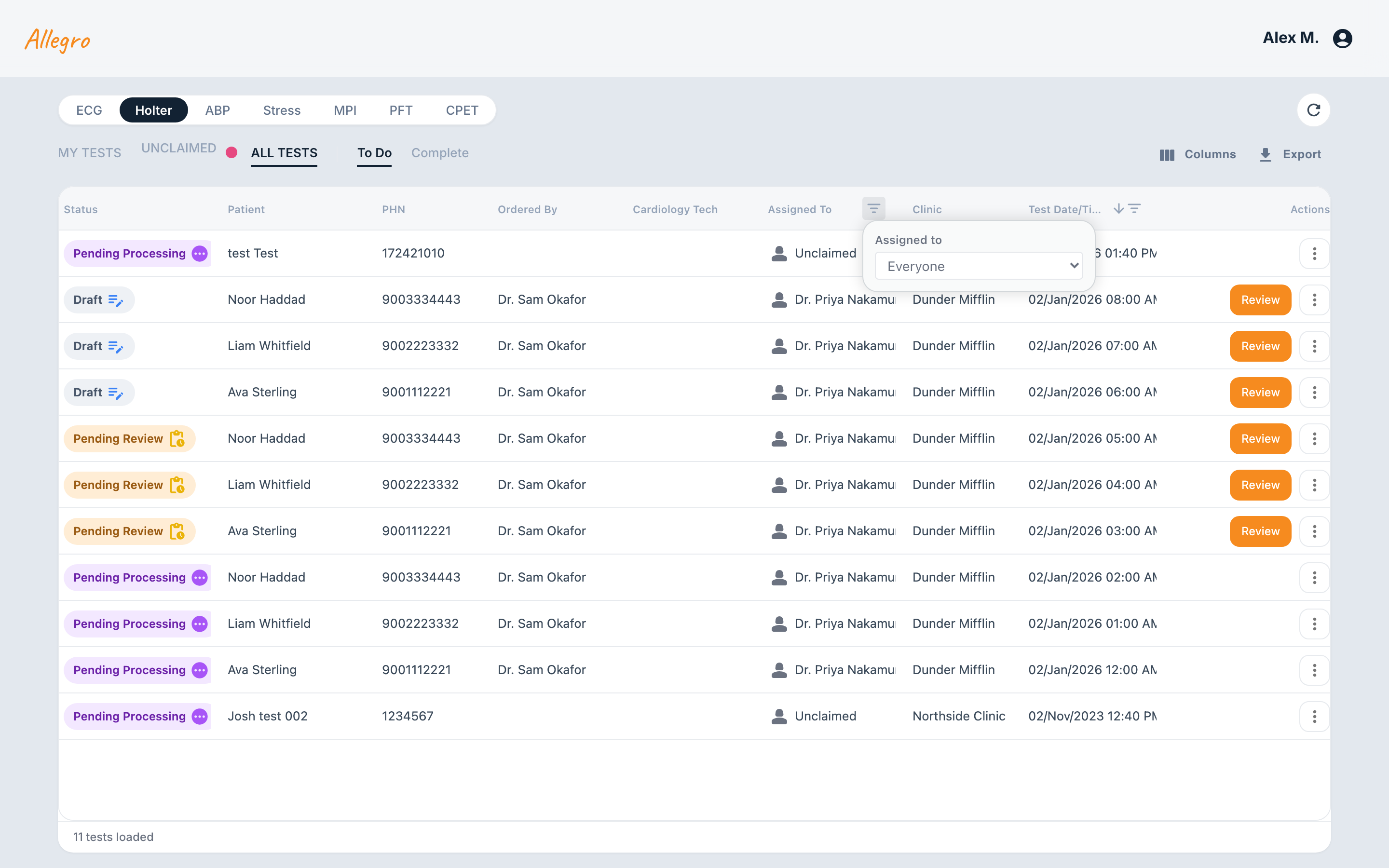
In the test list, find the Assigned To column header.
-
Select the small filter icon (three lines) next to it.
-
In Assigned to, pick a physician, or Everyone to clear the filter.
Filter by date
Section titled “Filter by date”-
Select the filter icon next to Test Date/Time.
-
Pick how to match: On, After, Before or Between.
-
Choose the date (or two dates for Between).
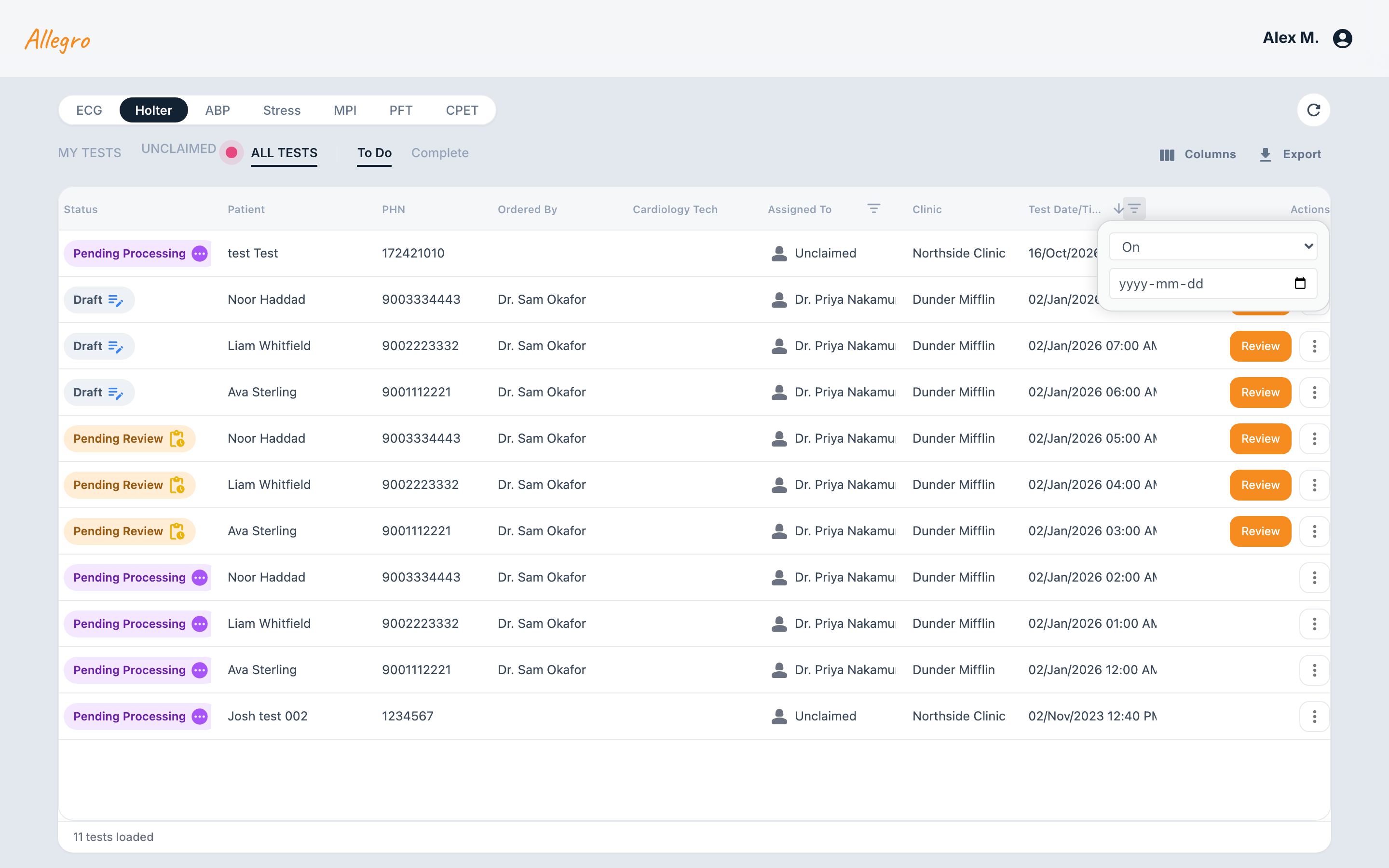
Select a column header that has an arrow, such as Test Date/Time, to switch between newest-first and oldest-first.
Show or hide columns
Section titled “Show or hide columns”-
Select Columns (top-right of the list).
-
Tick the columns you want to see. Untick the ones you don’t.
-
Click anywhere outside the box to close it.
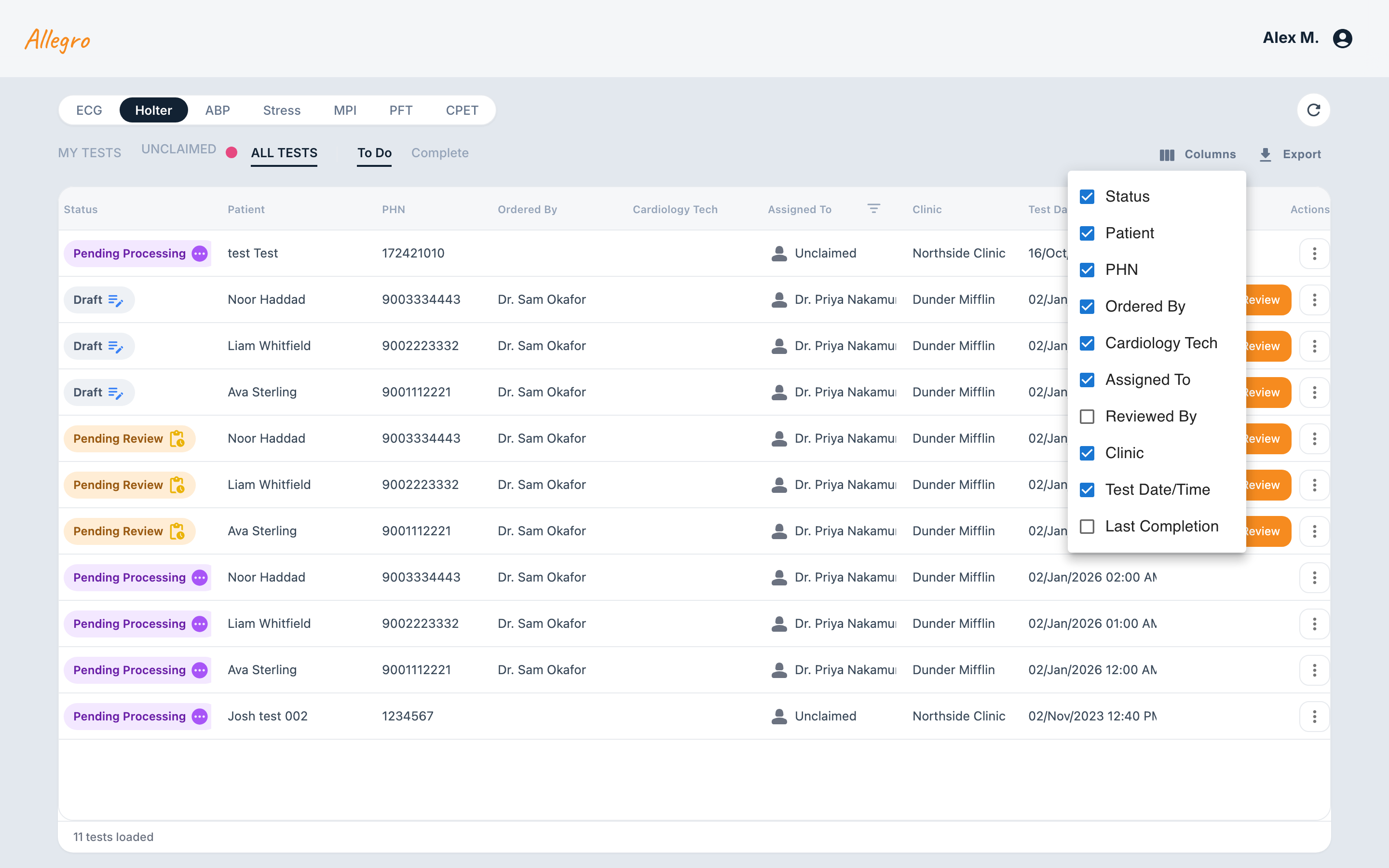
Reviewed By and Last Completion are hidden by default.
Export to a spreadsheet
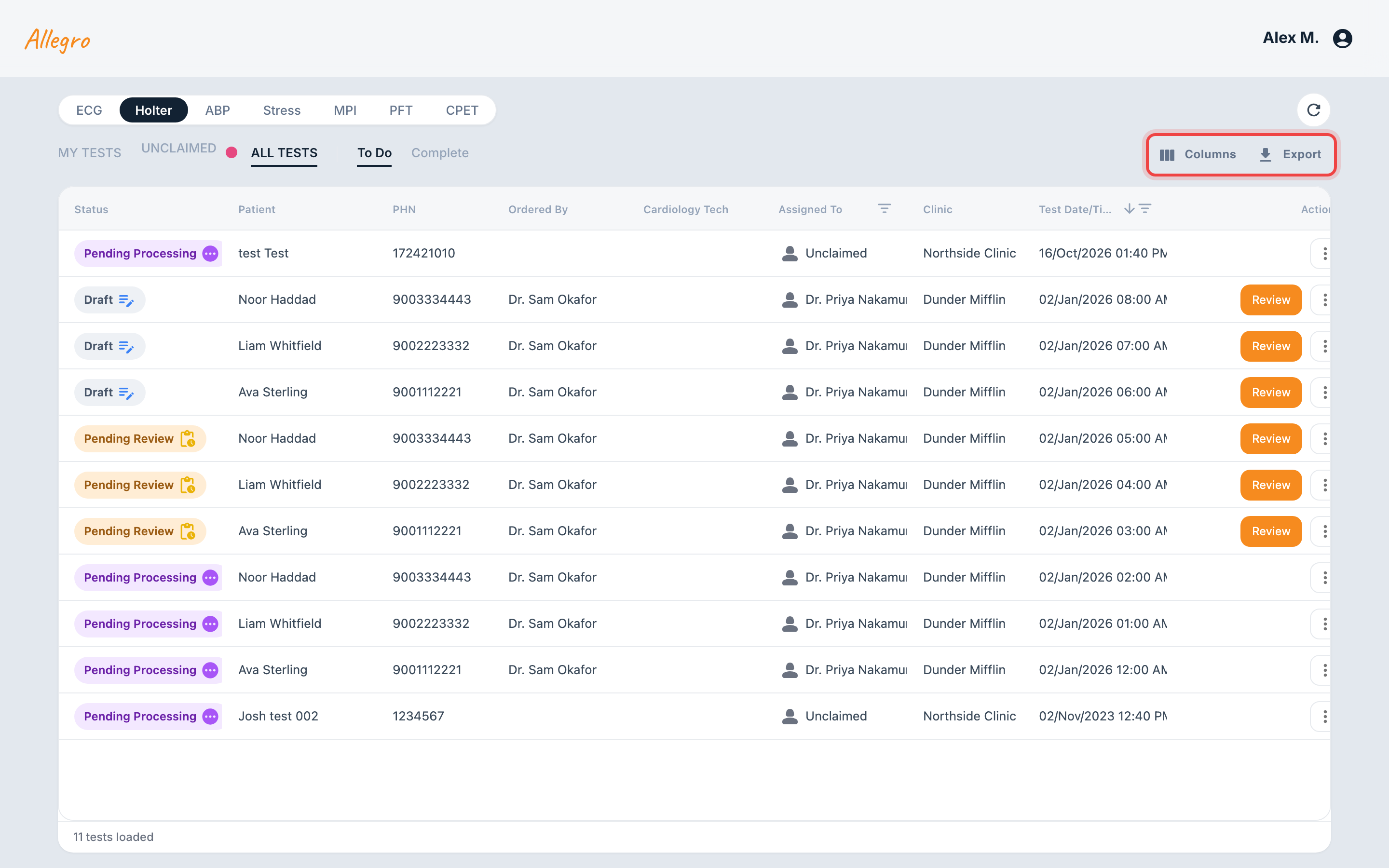
Section titled “Export to a spreadsheet”Select Export to download the list as a CSV file that opens in Excel. It includes the columns you’re showing and the tests you’ve loaded.
Find one patient’s tests
Section titled “Find one patient’s tests”To see every test for one patient across all test types, use PHN lookup.