Editing patient details
This page isn't usually needed for the group you picked under Viewing as. It's shown because you opened it directly.
You can fix a patient’s details on any test that isn’t finalized yet. (For finalized tests, see Making a correction.)
-
Open the test list and find the test.
-
Select Edit Demogr., or ⋮ then Edit Demographics.
-
The Demographics and Health Provider Information sections open for editing.
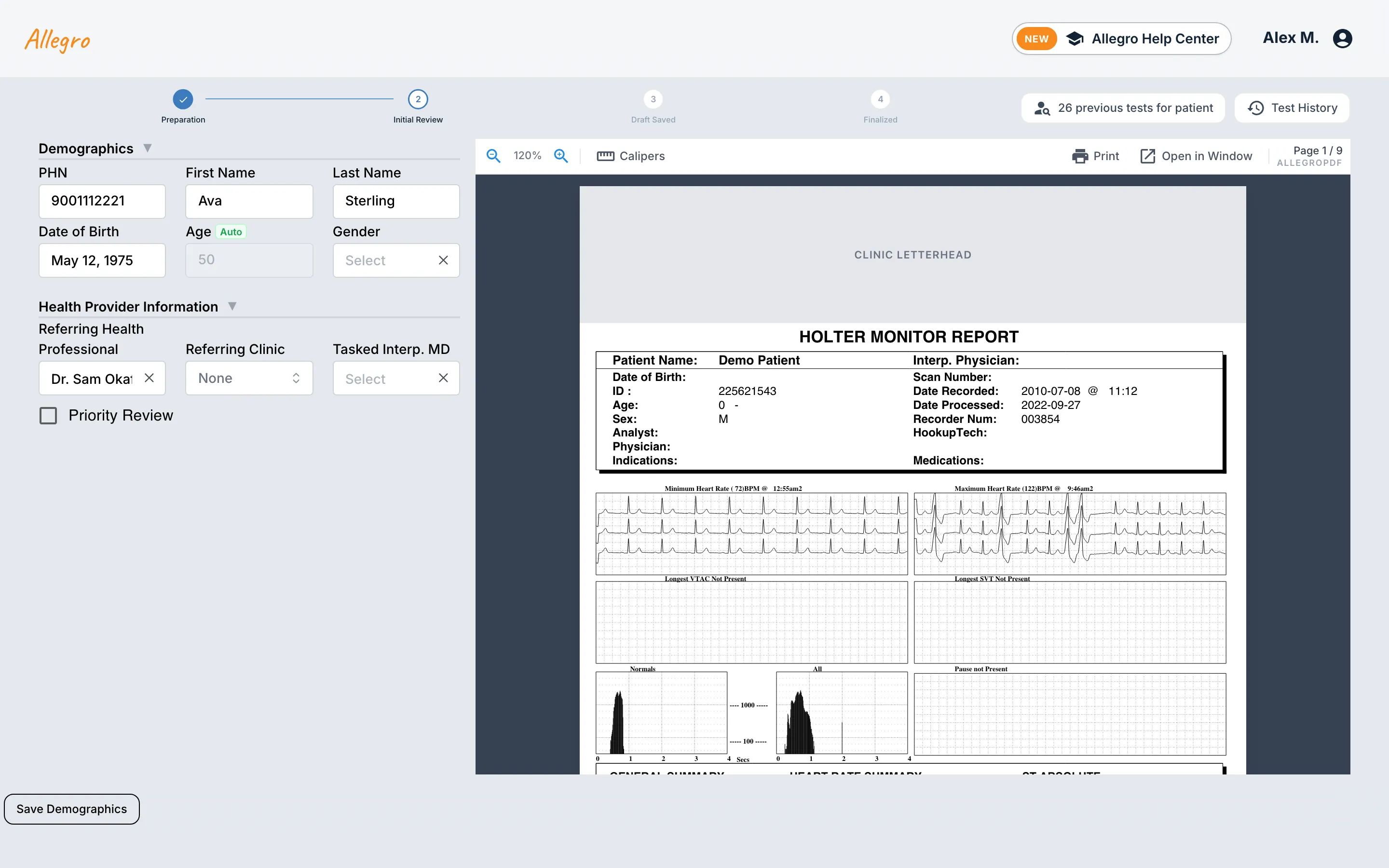
Editing patient details -
Change what’s needed:
- PHN
- First Name and Last Name
- Date of Birth (the Age fills in automatically)
- Gender
-
Once you change something, Save Demographics appears at the bottom-left. Select it.
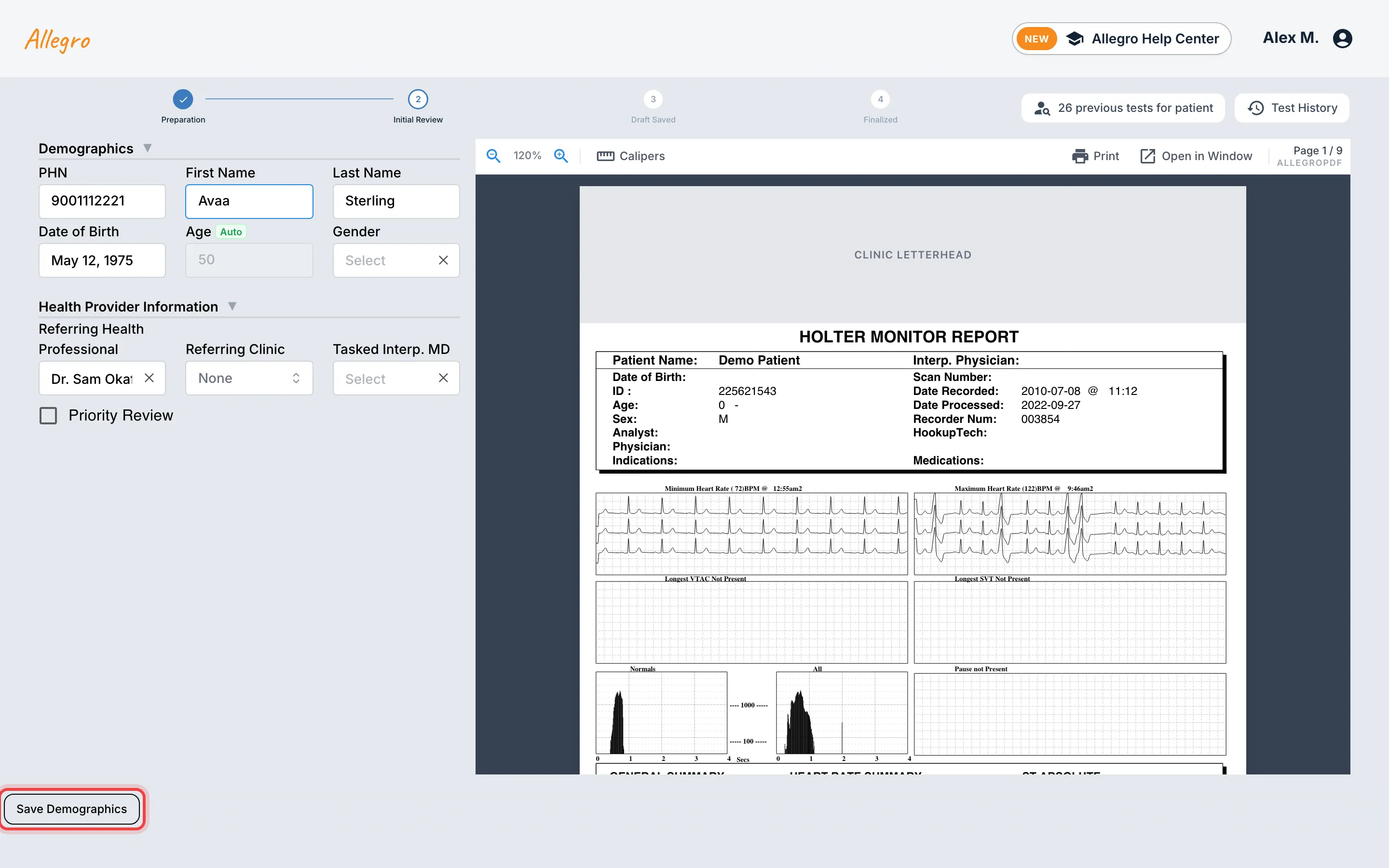
Save Demographics appears once you've made a change
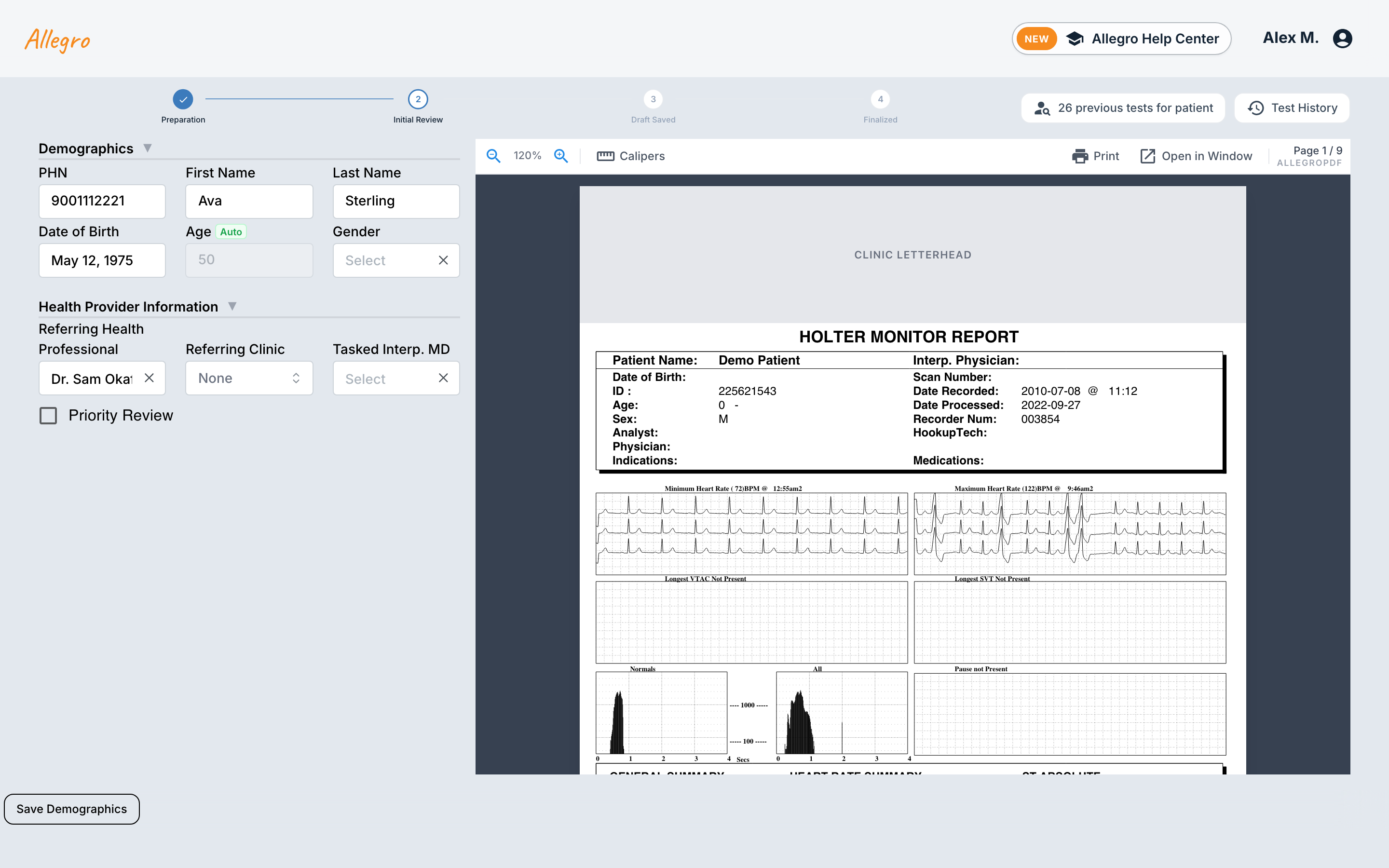
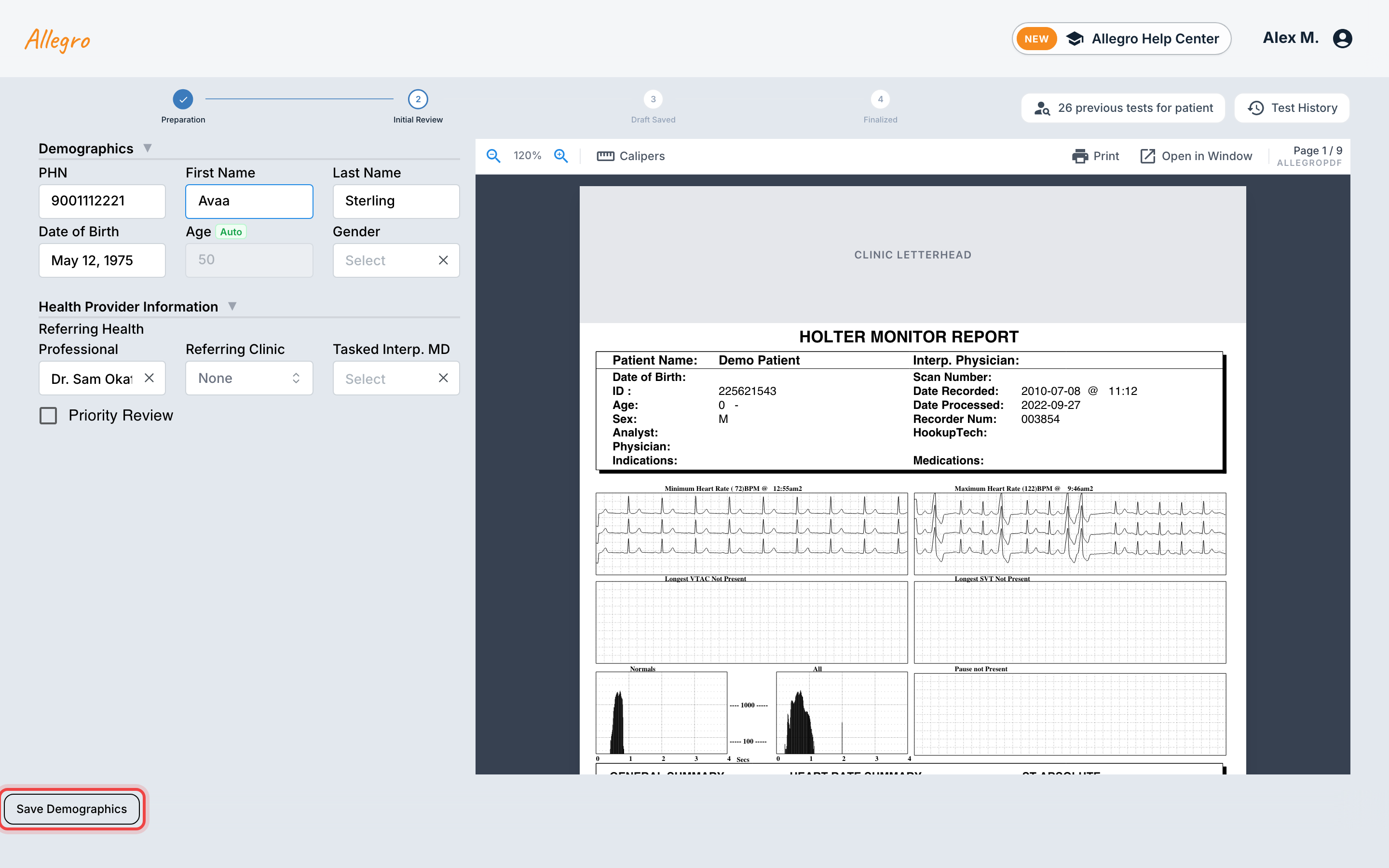
Other things you can change here
Section titled “Other things you can change here”- Referring Health Professional and Referring Clinic. See Choosing a referring clinic.
- Tasked Interp. MD, the physician who will review it. See Reassigning a test.
- Priority Review: tick it to flag the test as urgent.