Changing a user's roles
This page isn't usually needed for the group you picked under Viewing as. It's shown because you opened it directly.
A person’s roles decide what they can do in Allegro. Everyone has one main role and can have extra roles on top of it.
-
Go to Organization Settings → Users.
-
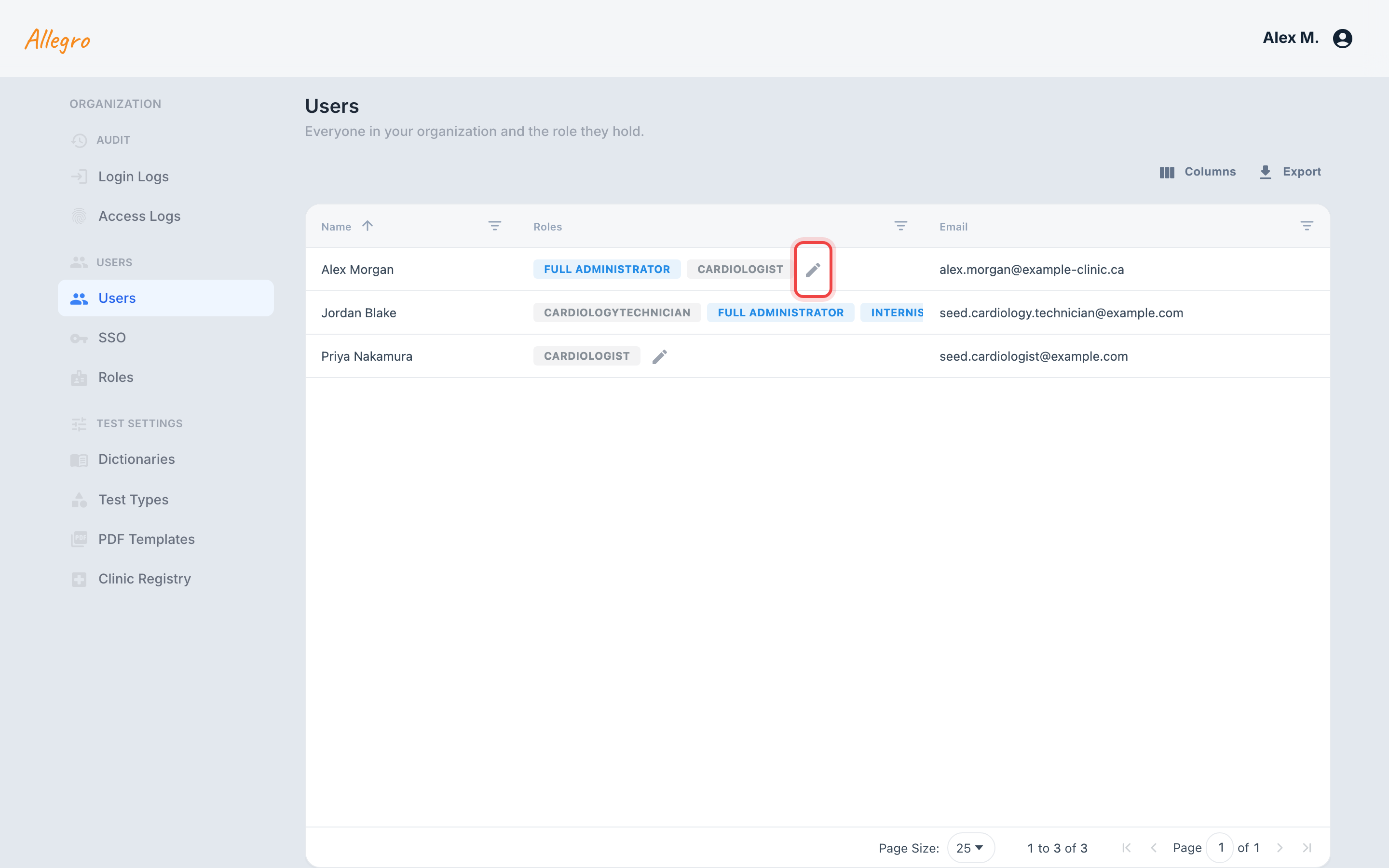
Find the person. Their roles are shown as badges in the Roles column.
-
Select the pencil ✏️ next to their roles.
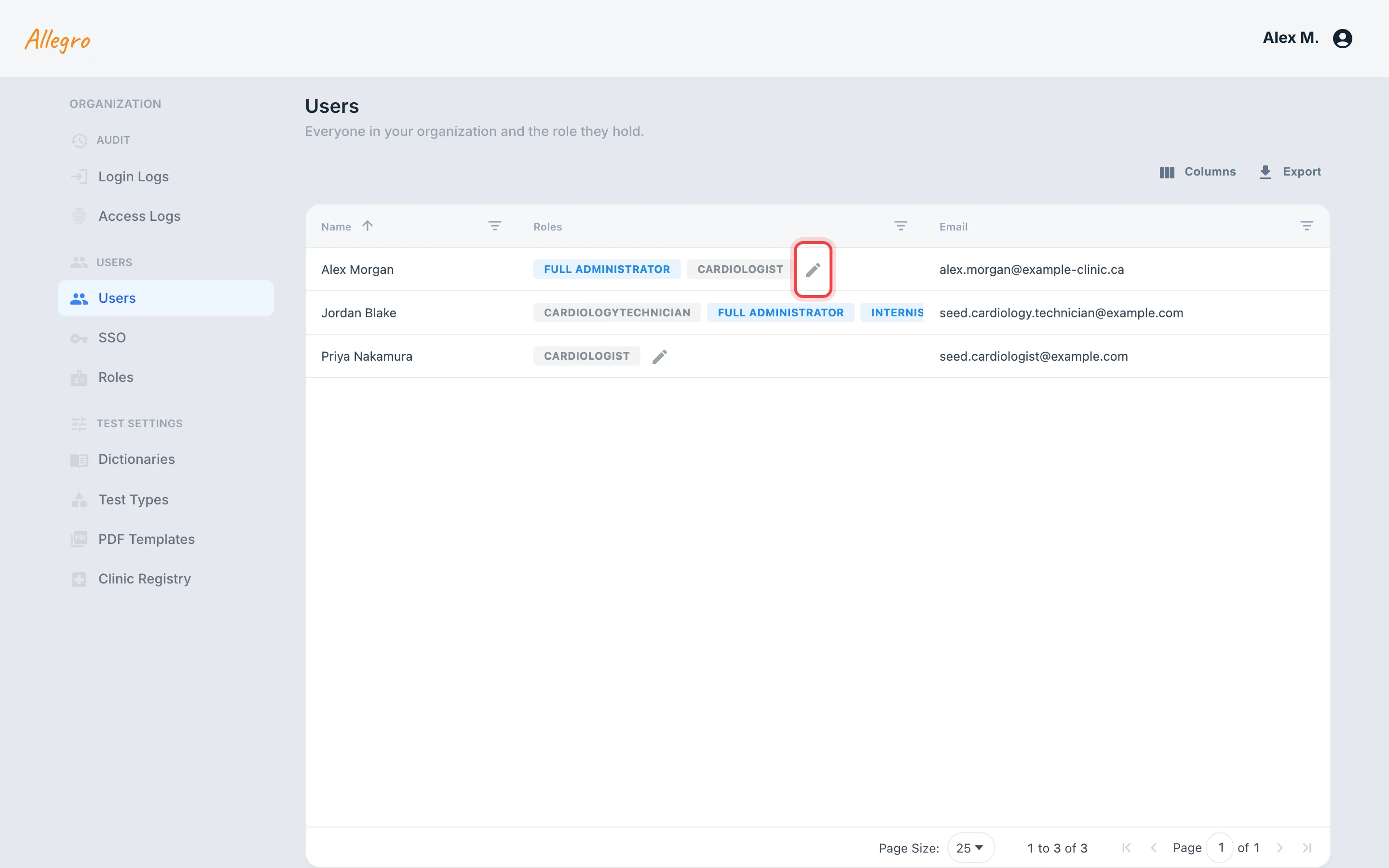
The pencil opens the role editor -
The Roles for … window opens.
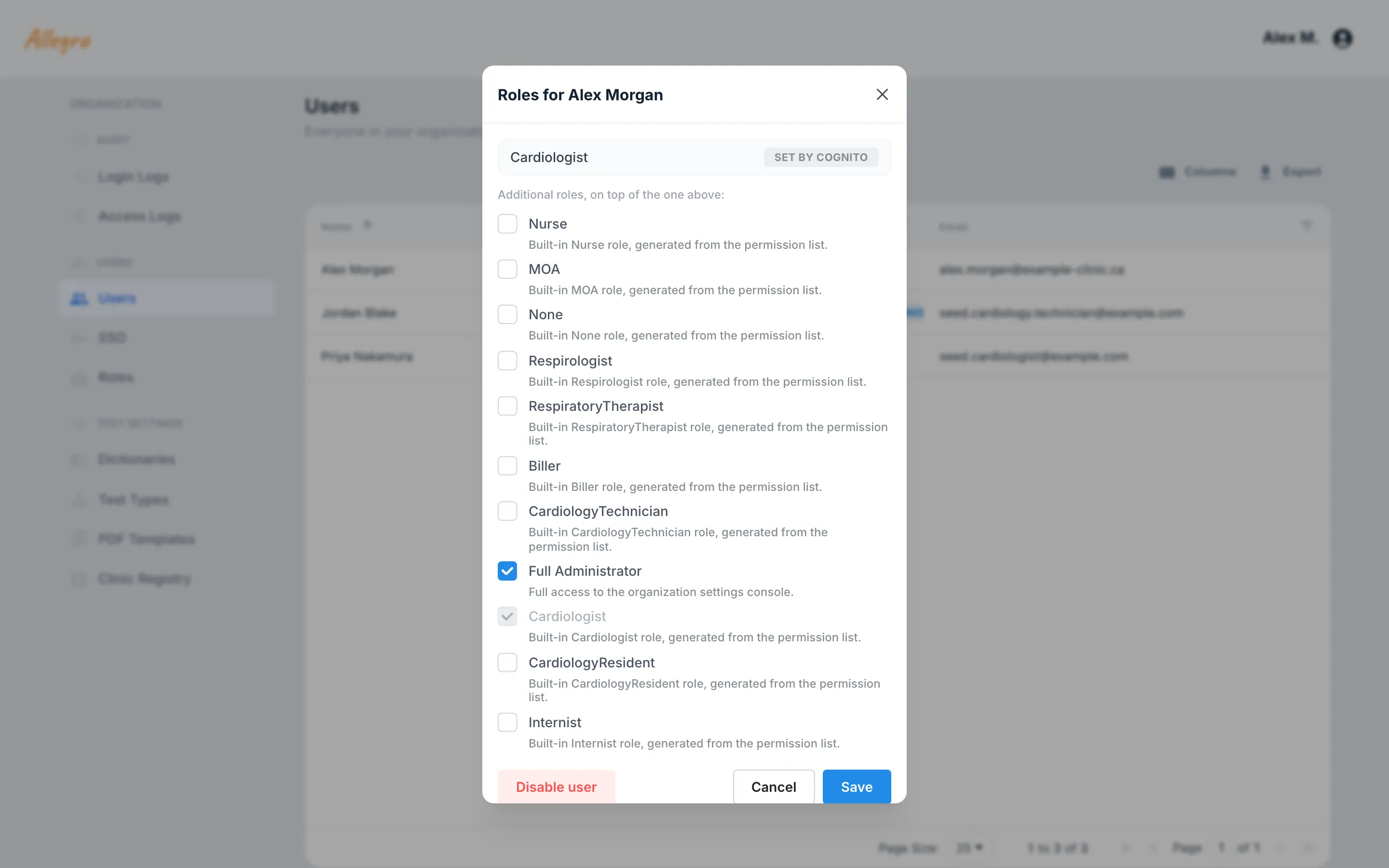
Roles for a user -
Tick each extra role they should have, and untick ones they shouldn’t.
-
Select Save.
Understanding the window
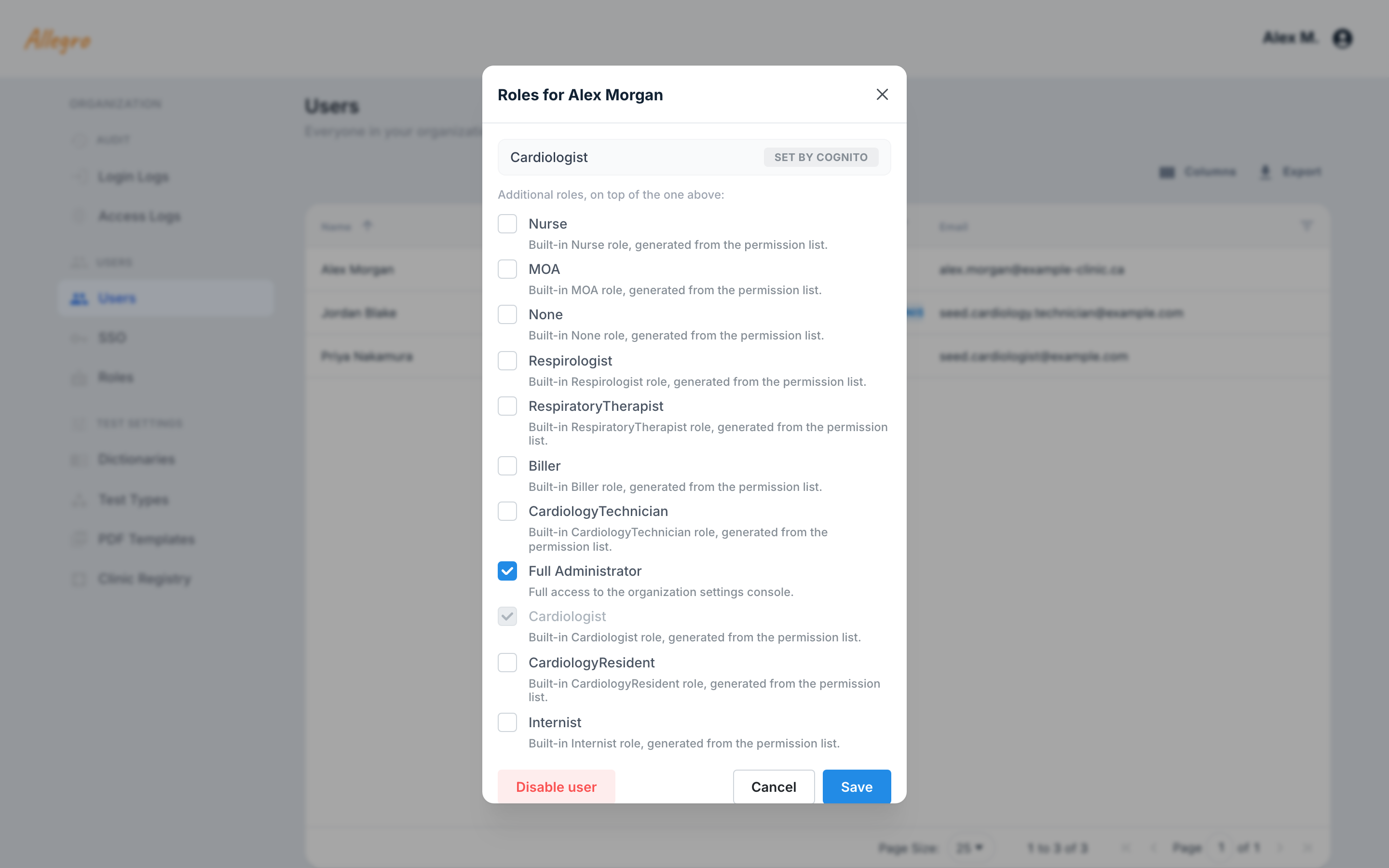
Section titled “Understanding the window”- The box at the top is the person’s main role, marked Set by Cognito. It comes from their account (or your SSO provider) and can’t be changed here. It’s ticked and greyed out in the list below.
- The tick boxes are the extra roles. Each shows a short description.
- Full Administrator gives full access to Organization Settings. Only give it to people who manage Allegro.
Which role should I give?
Section titled “Which role should I give?”See Who can do what. For the exact permissions, see Permissions reference.