Viewing a finalized report
This page isn't usually needed for the group you picked under Viewing as. It's shown because you opened it directly.
-
Open the test list and select the Complete tab.
-
Find the test. On its row, select View, or select ⋮ then View.
-
The report opens. All four steps at the top are ticked.
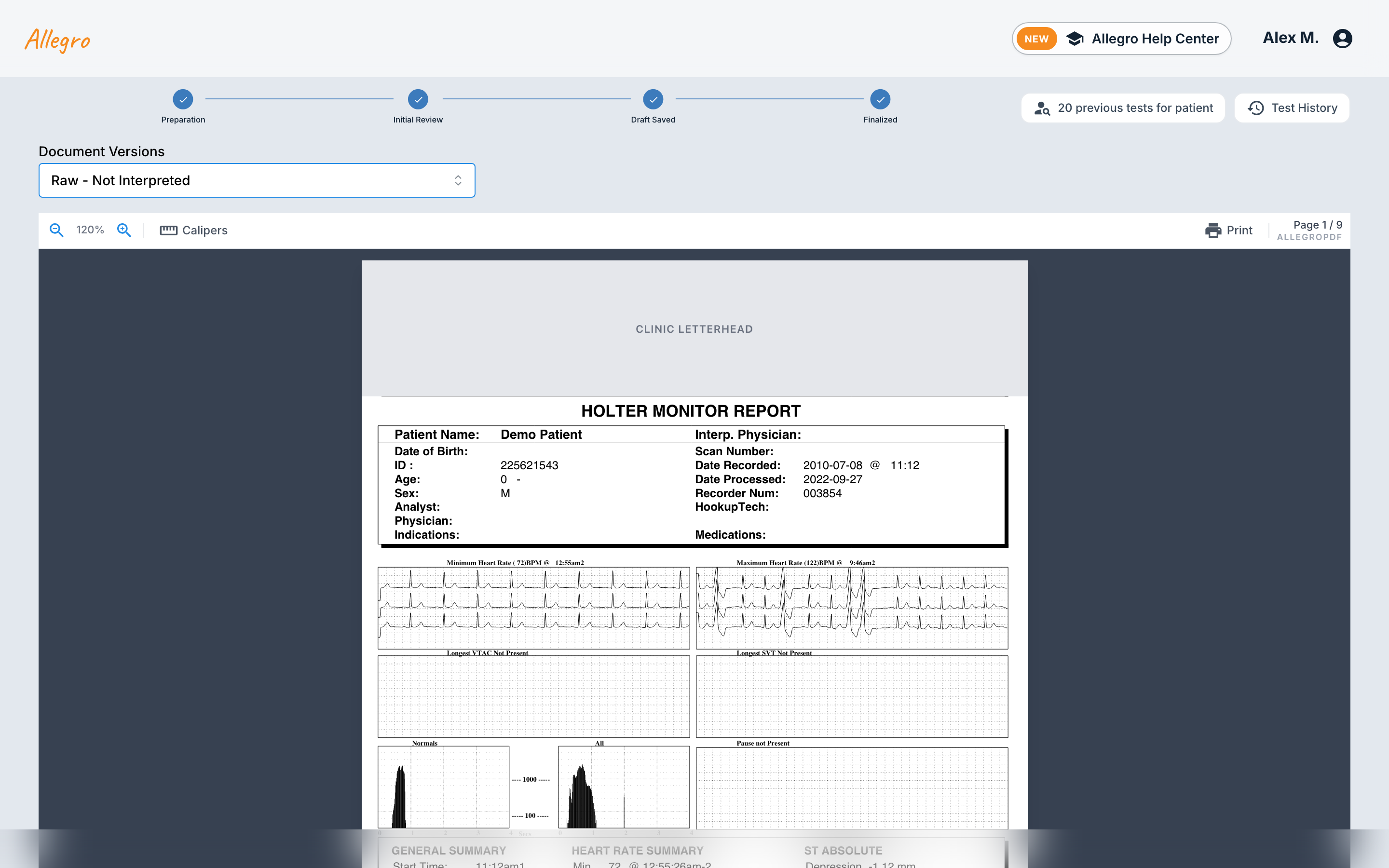
Choose which version to see
Section titled “Choose which version to see”A finalized test can have several versions. Pick one from Document Versions at the top-left.
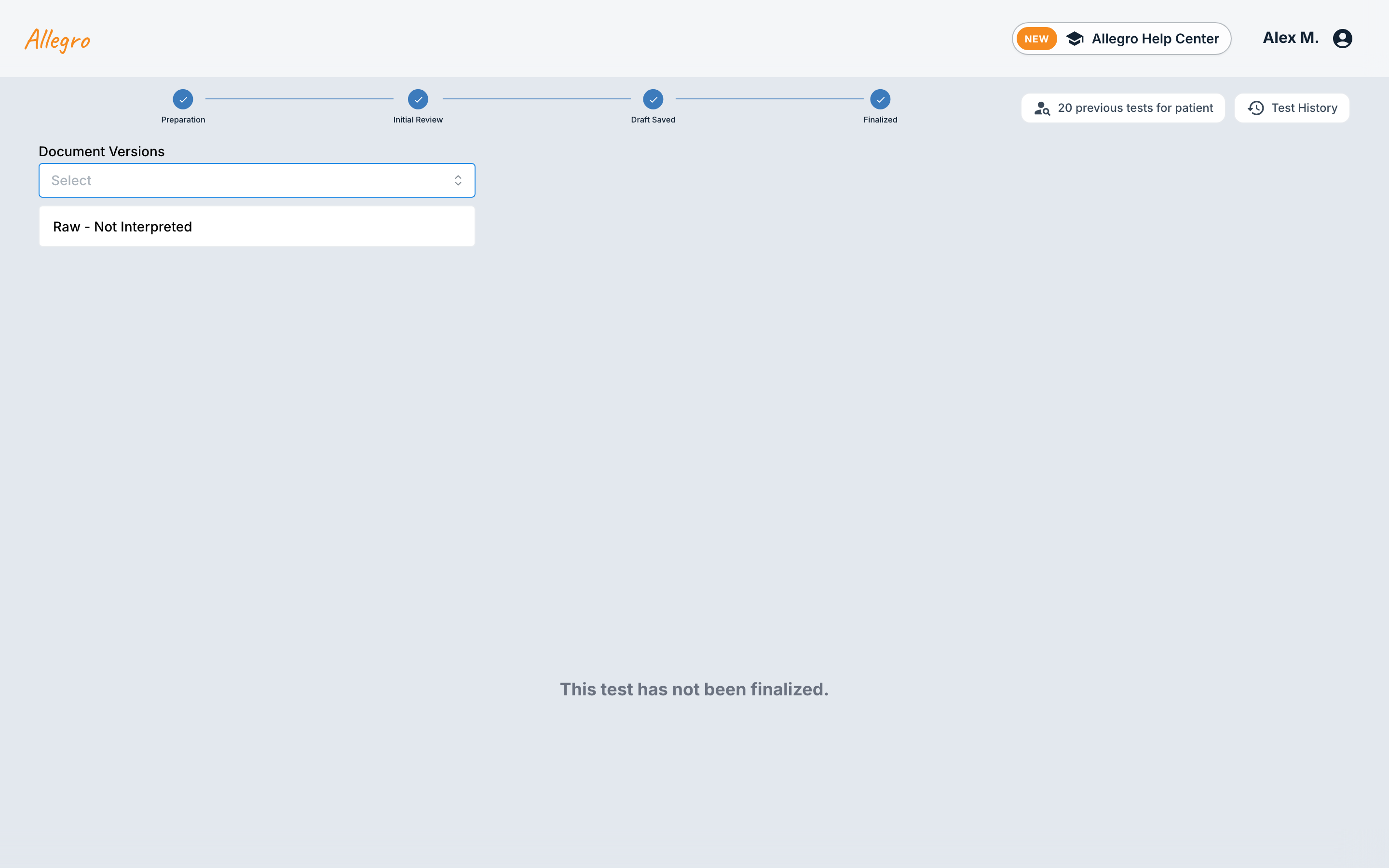
| Version | What it is |
|---|---|
| Original – Interpreted | The first signed report. |
| Amendment 1, 2… – Interpreted | Each later amended report. The newest is at the top. |
| Raw – Not Interpreted | The machine’s original output, before the physician’s interpretation. |
Using the report viewer
Section titled “Using the report viewer”The same viewer is used everywhere in Allegro.
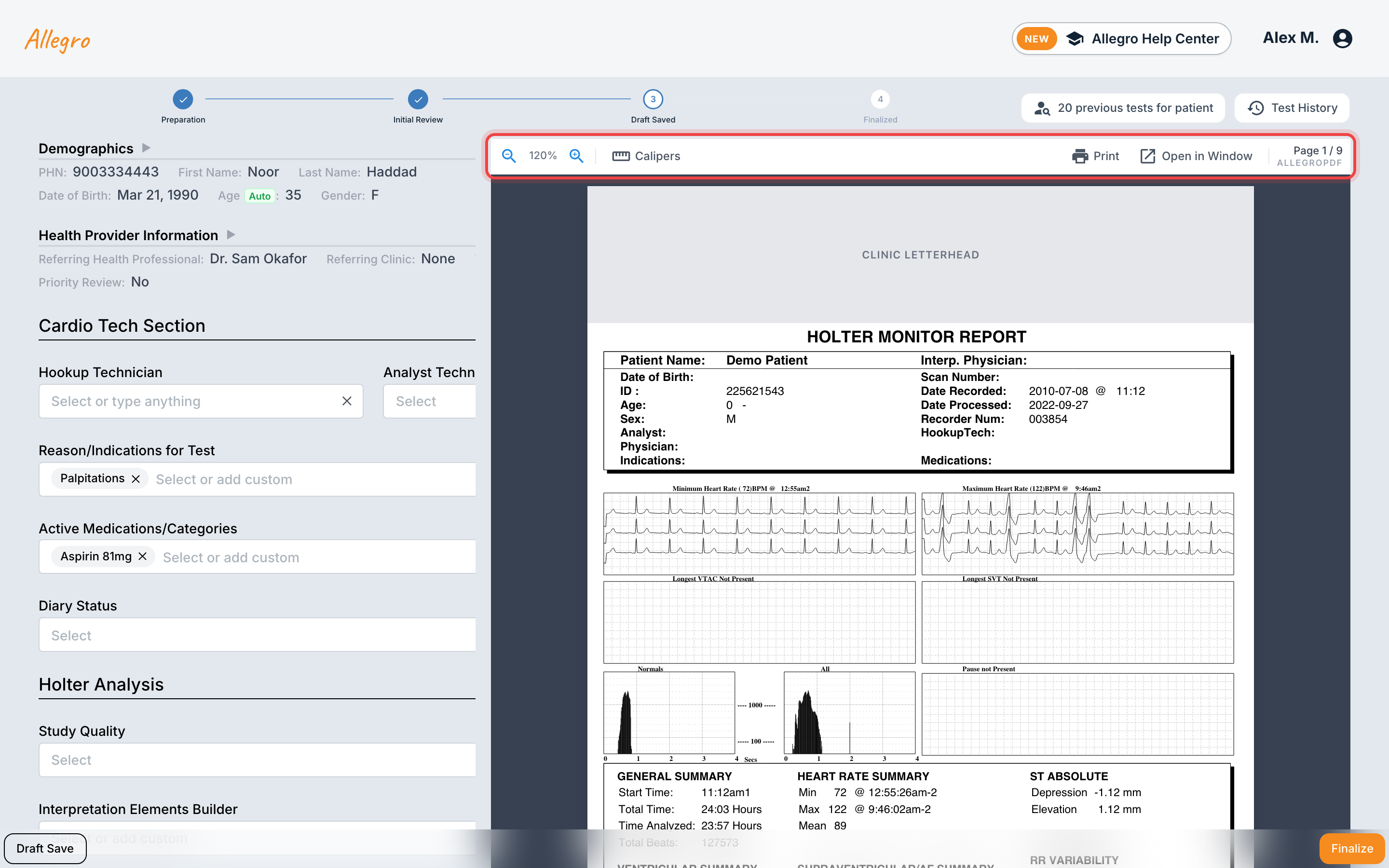
| Tool | What it does |
|---|---|
| 🔍− / 🔍+ | Zoom out and in. The current zoom (for example 120%) is shown between them. |
| Calipers | Measure distances on a tracing. See Reviewing a test. |
| Print the report, or save it as a PDF. | |
| Open in Window | Open the report in its own browser window, for example on a second screen. |
| Page 1 / 9 | Which page you’re on. Scroll to move between pages. |
Patient’s other tests
Section titled “Patient’s other tests”Select N previous tests for patient (top-right) to see this patient’s other tests without leaving the report. See PHN lookup.