Reviewing a test
This page isn't usually needed for the group you picked under Viewing as. It's shown because you opened it directly.
Open the test
Section titled “Open the test”-
Open your worklist.
-
Select Review on the test.
-
The review screen opens.
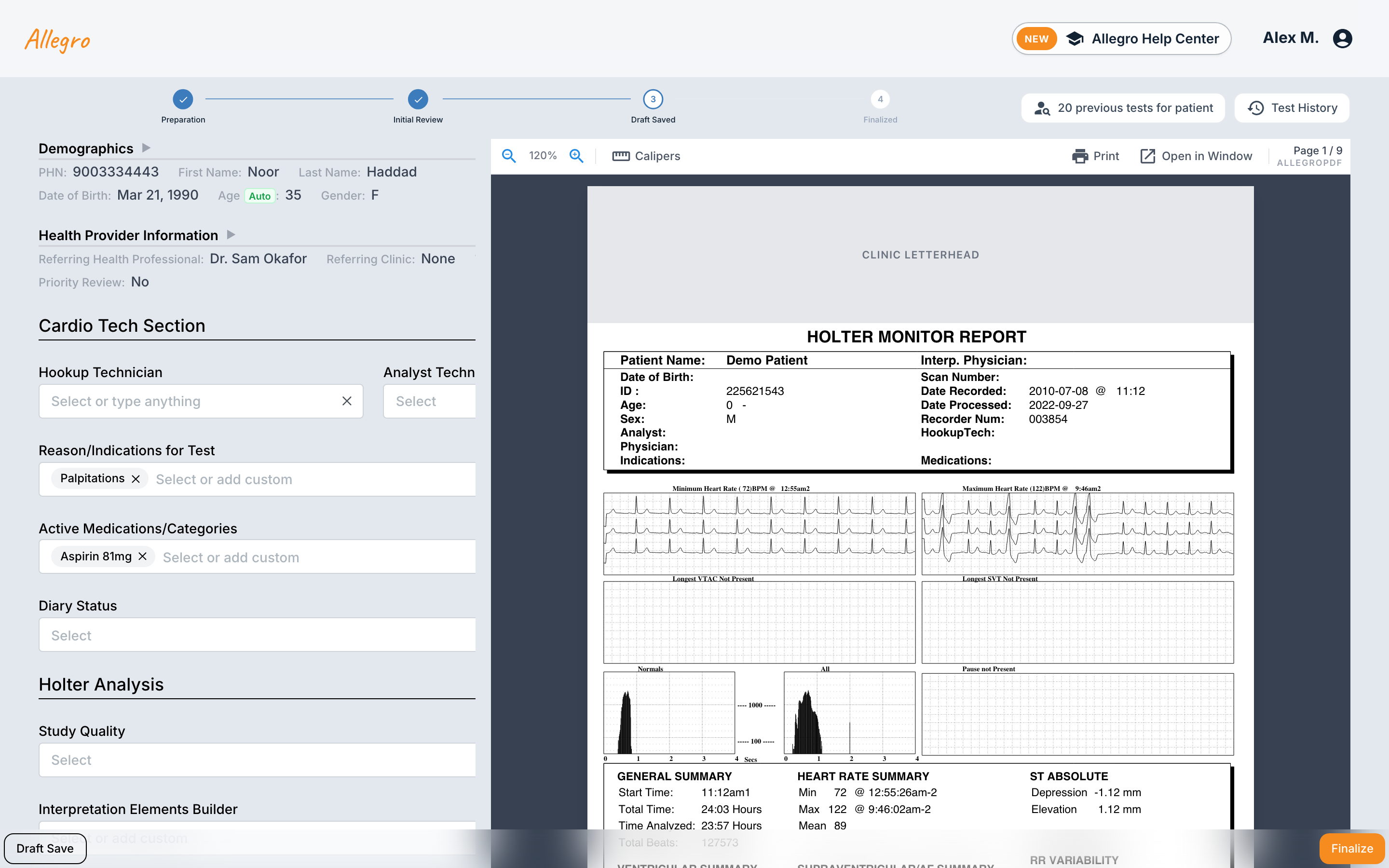
If someone has already saved a draft, a message tells you who, for example “This test was draft reviewed by Dr. …”.
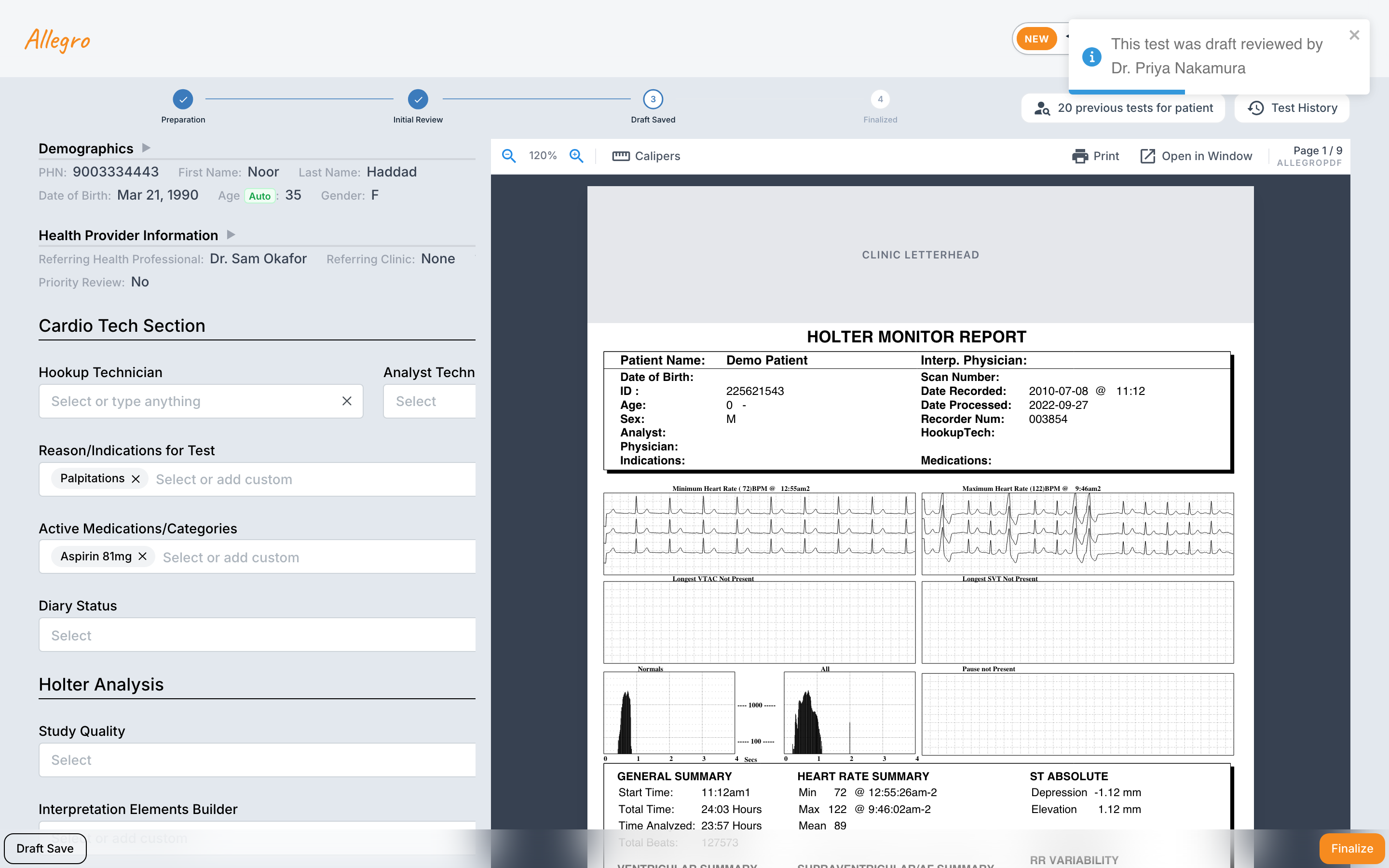
What’s on the screen
Section titled “What’s on the screen”| Area | What it’s for |
|---|---|
| Progress bar (top) | Where the test is: Preparation → Initial Review → Draft Saved → Finalized. |
| N previous tests for patient | This patient’s other tests. More |
| Test History | Everyone who opened or changed this test. More |
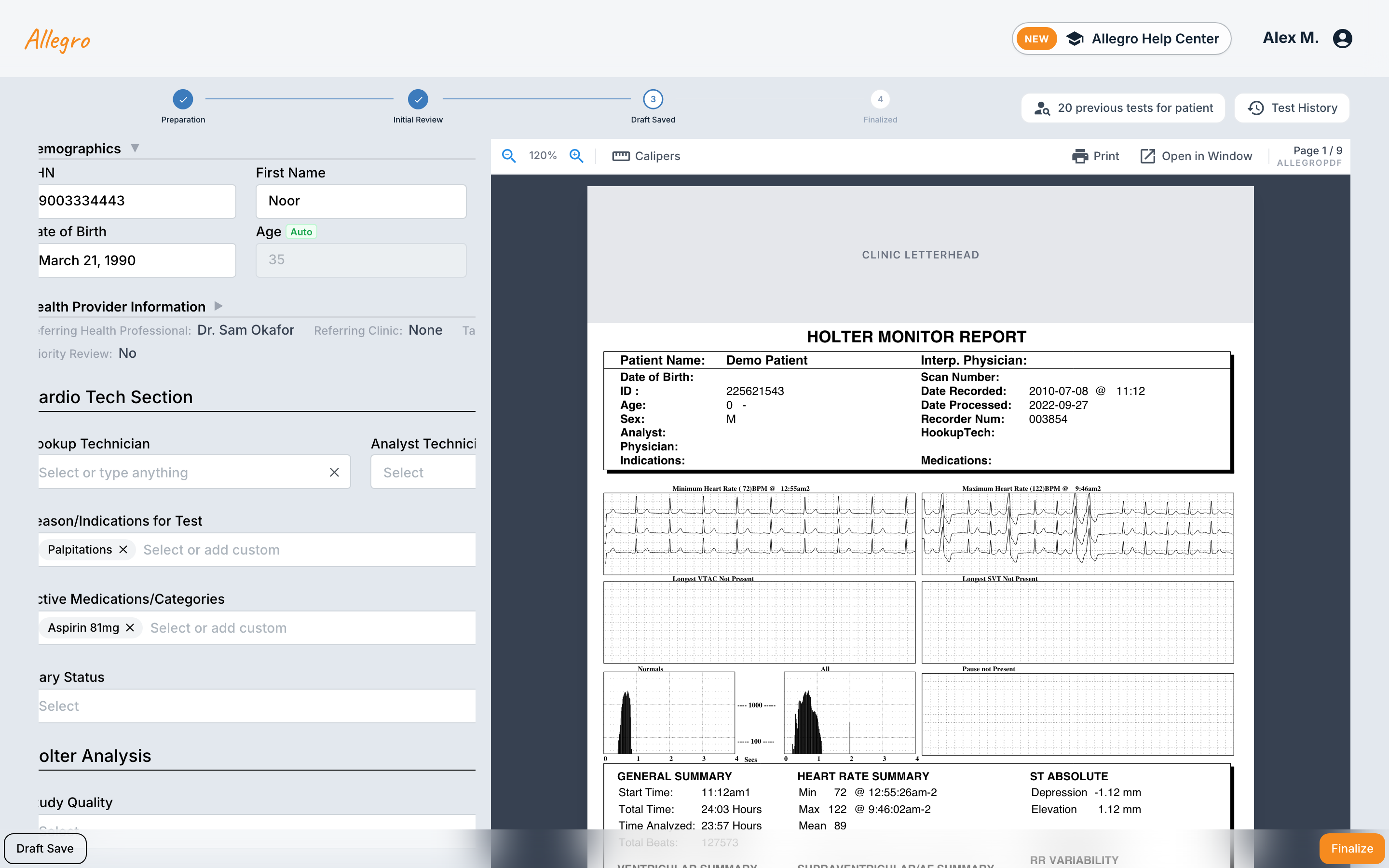
| Demographics | Patient name, PHN, date of birth, age, gender. |
| Health Provider Information | Referring doctor, referring clinic, assigned physician, priority. |
| Technologist section | What the technologist filled in when preparing (for example Cardio Tech Section). |
| Analysis section | Your interpretation (for example Holter Analysis). |
| Report viewer (right) | The machine report. Zoom, measure, print. |
| Draft Save (bottom-left) | Save without signing. |
| Finalize (bottom-right) | Sign and send to the EMR. |
1. Check the patient and the technologist’s notes
Section titled “1. Check the patient and the technologist’s notes”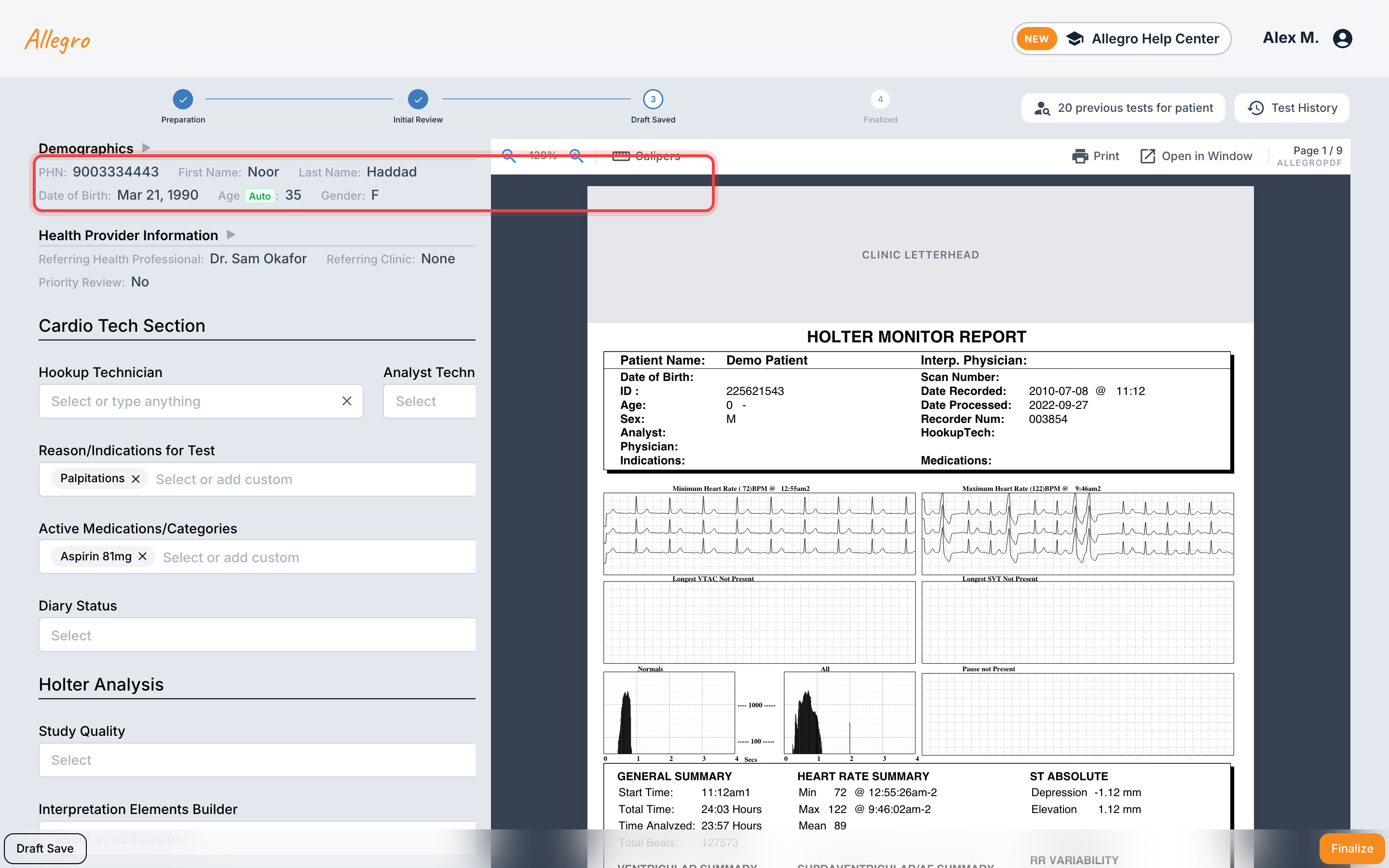
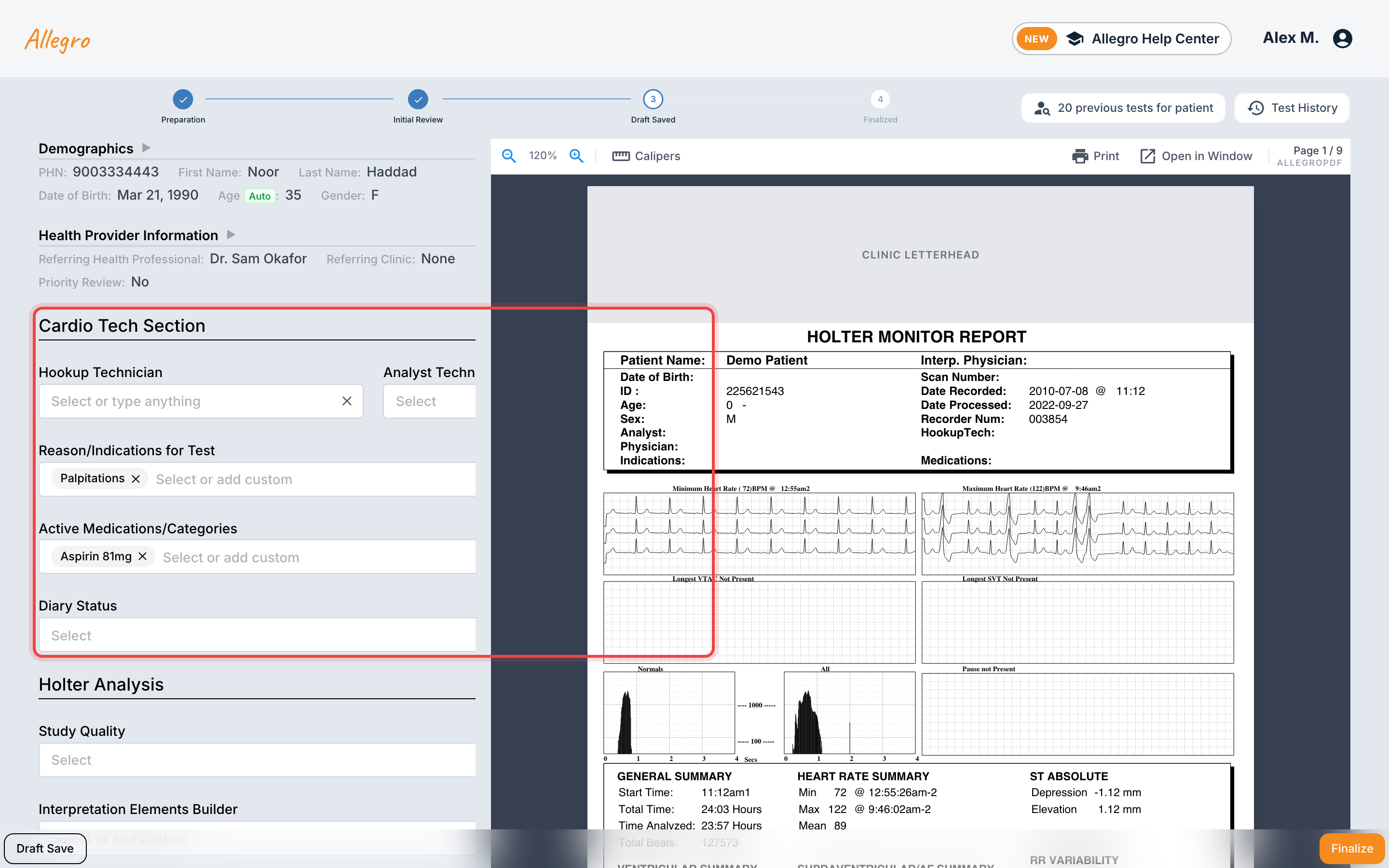
Something wrong in the patient details? Select the Demographics or Health Provider Information heading. The section opens for editing right there.
2. Write your interpretation
Section titled “2. Write your interpretation”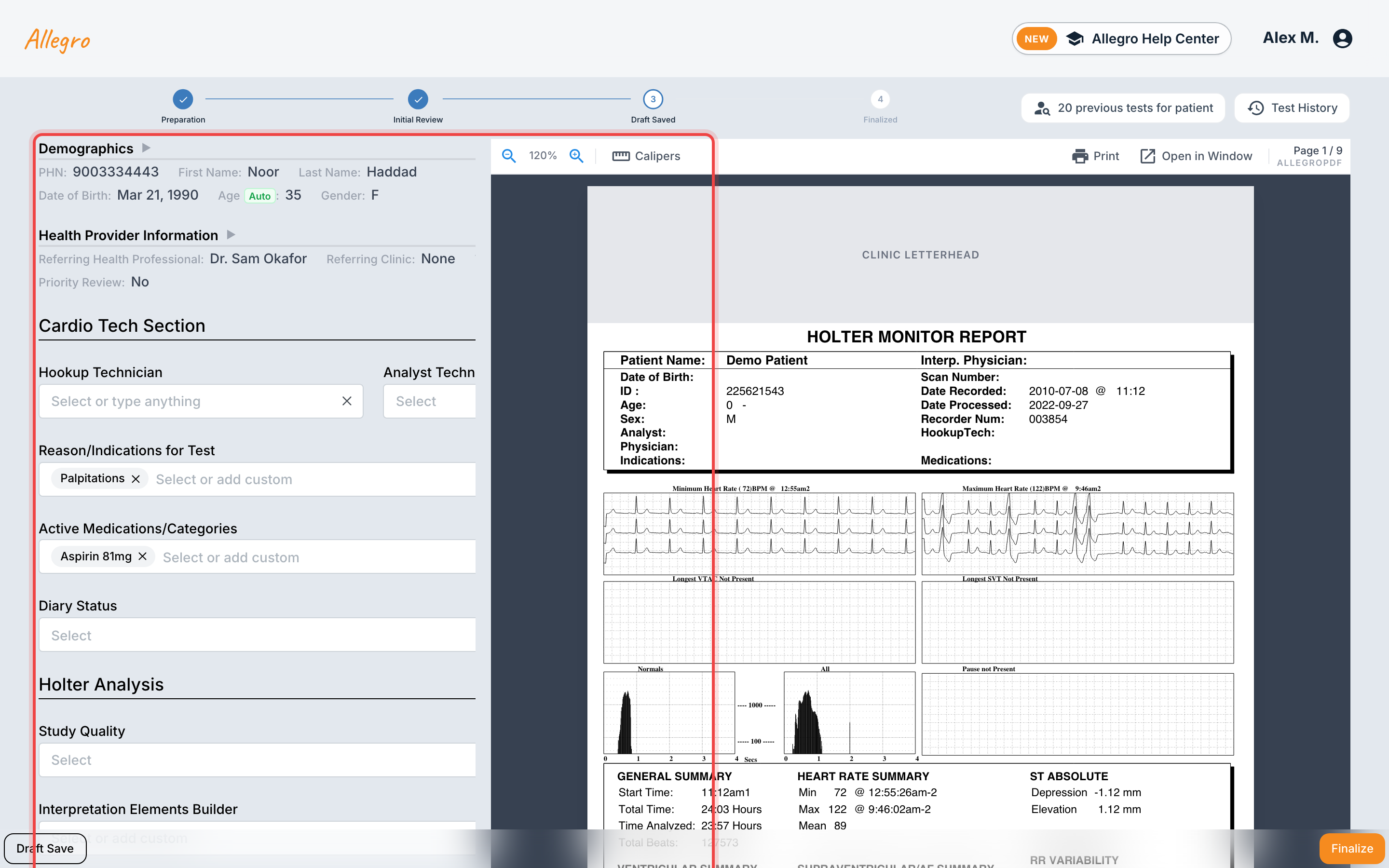
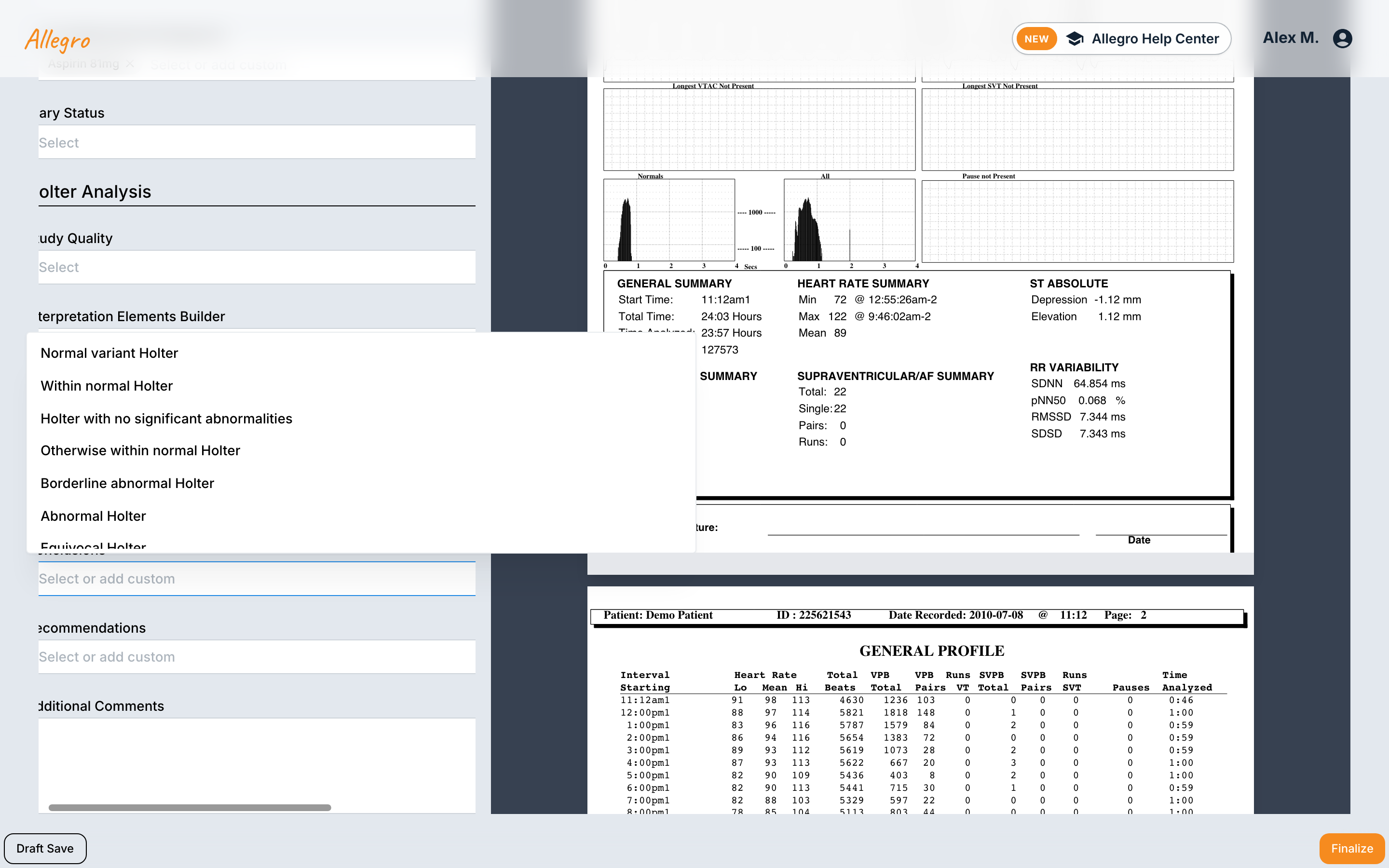
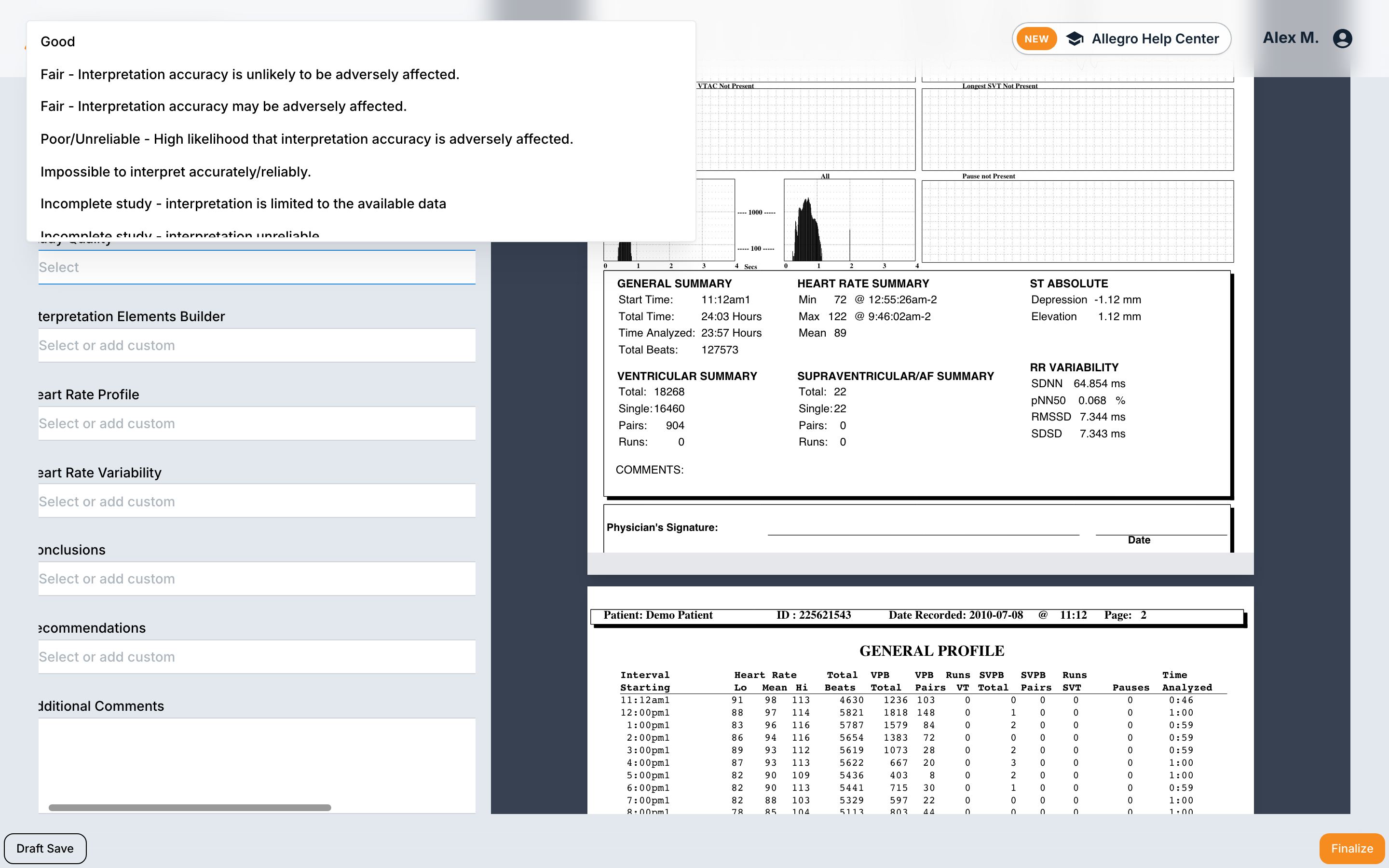
Most fields are pick-lists. You can:
- Choose a ready-made phrase from the list.
- Type to search the list.
- Add your own text. Fields that say “Select or add custom” accept anything you type. Press Enter to add it.
- Pick several. Many fields take more than one phrase. Each choice appears as a chip, and the × on a chip removes it.
Use Additional Comments at the bottom for free text.
3. Look at the report
Section titled “3. Look at the report”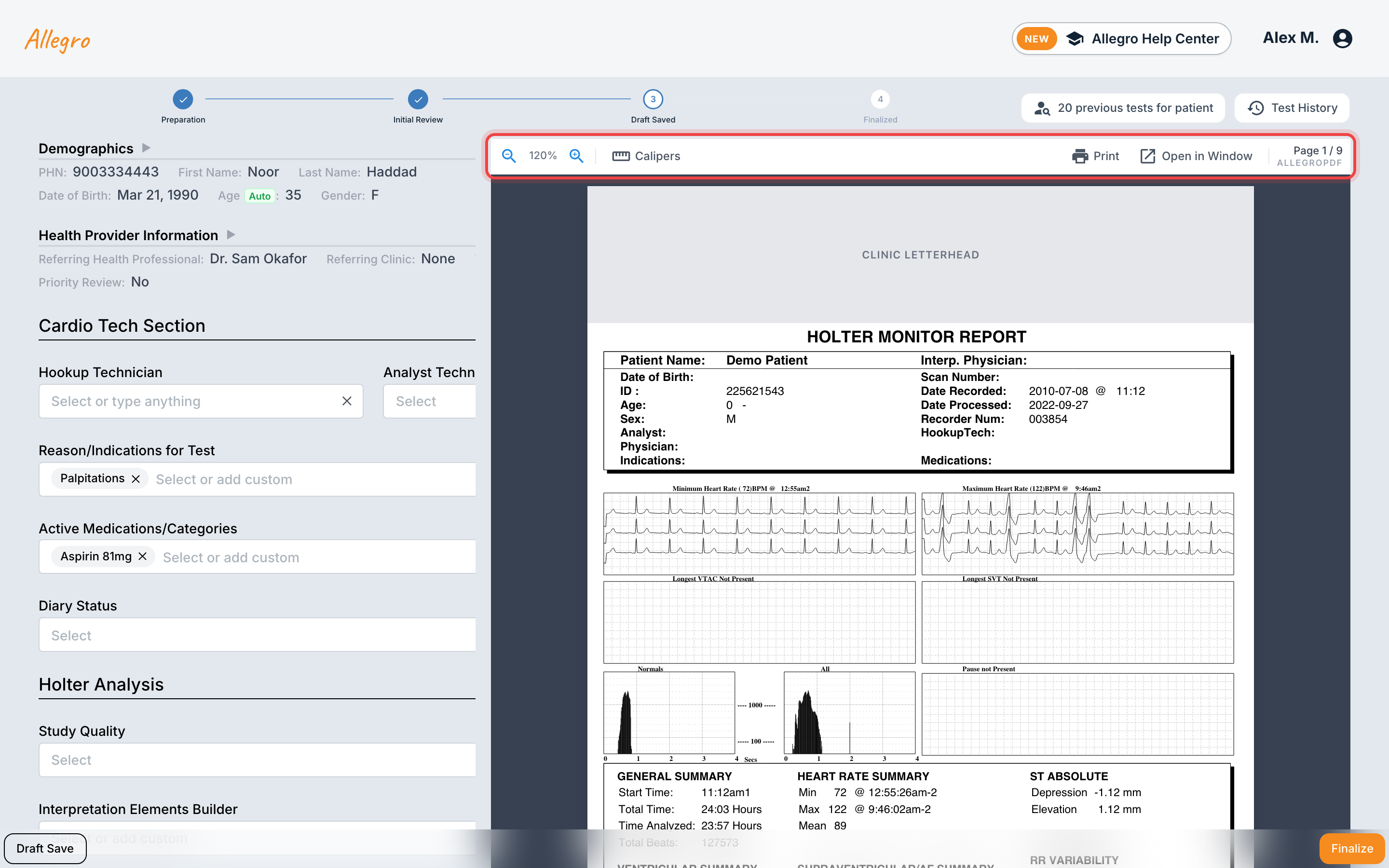
- Zoom with 🔍− and 🔍+.
- Scroll to move between pages.
- Open in Window puts the report in its own window, which is handy with two screens.
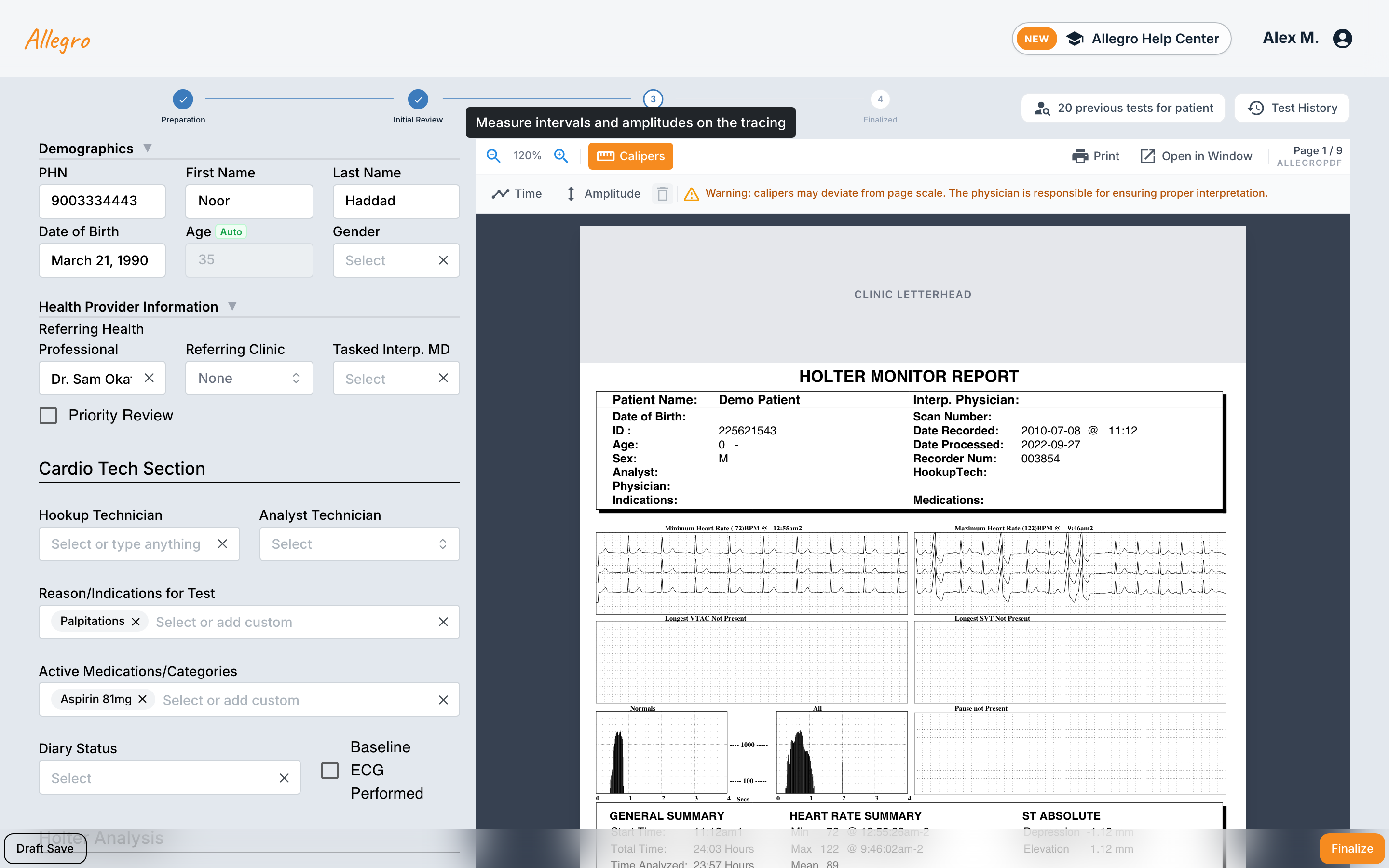
Measure with calipers
Section titled “Measure with calipers”-
Select Calipers in the viewer toolbar.
-
Click and drag on the tracing to measure.
-
Select Calipers again to turn them off.
Compare with previous tests
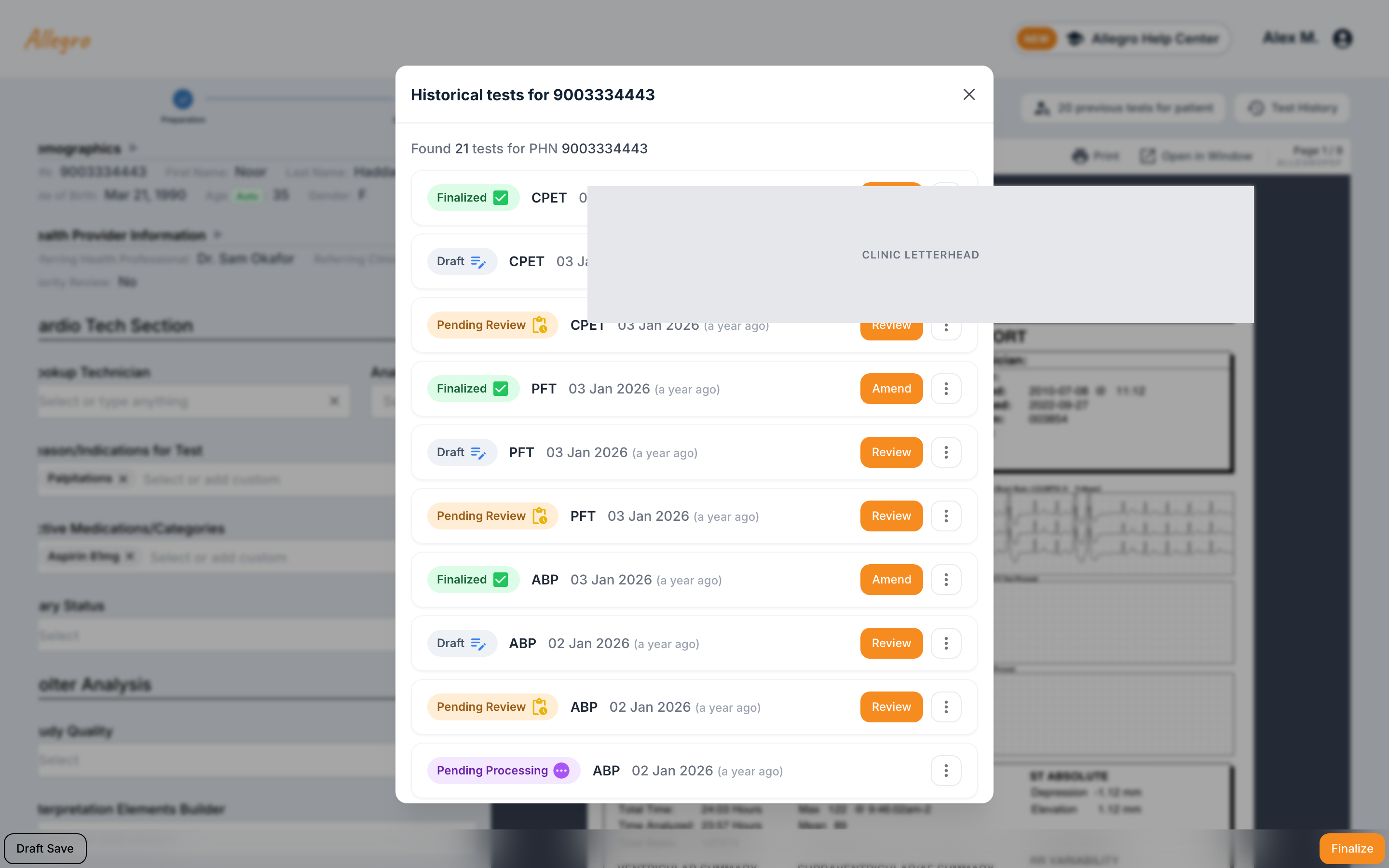
Section titled “Compare with previous tests”Select N previous tests for patient to see the patient’s history. Select Review, Amend or ⋮ on any of them to open it.
4. Save or sign
Section titled “4. Save or sign”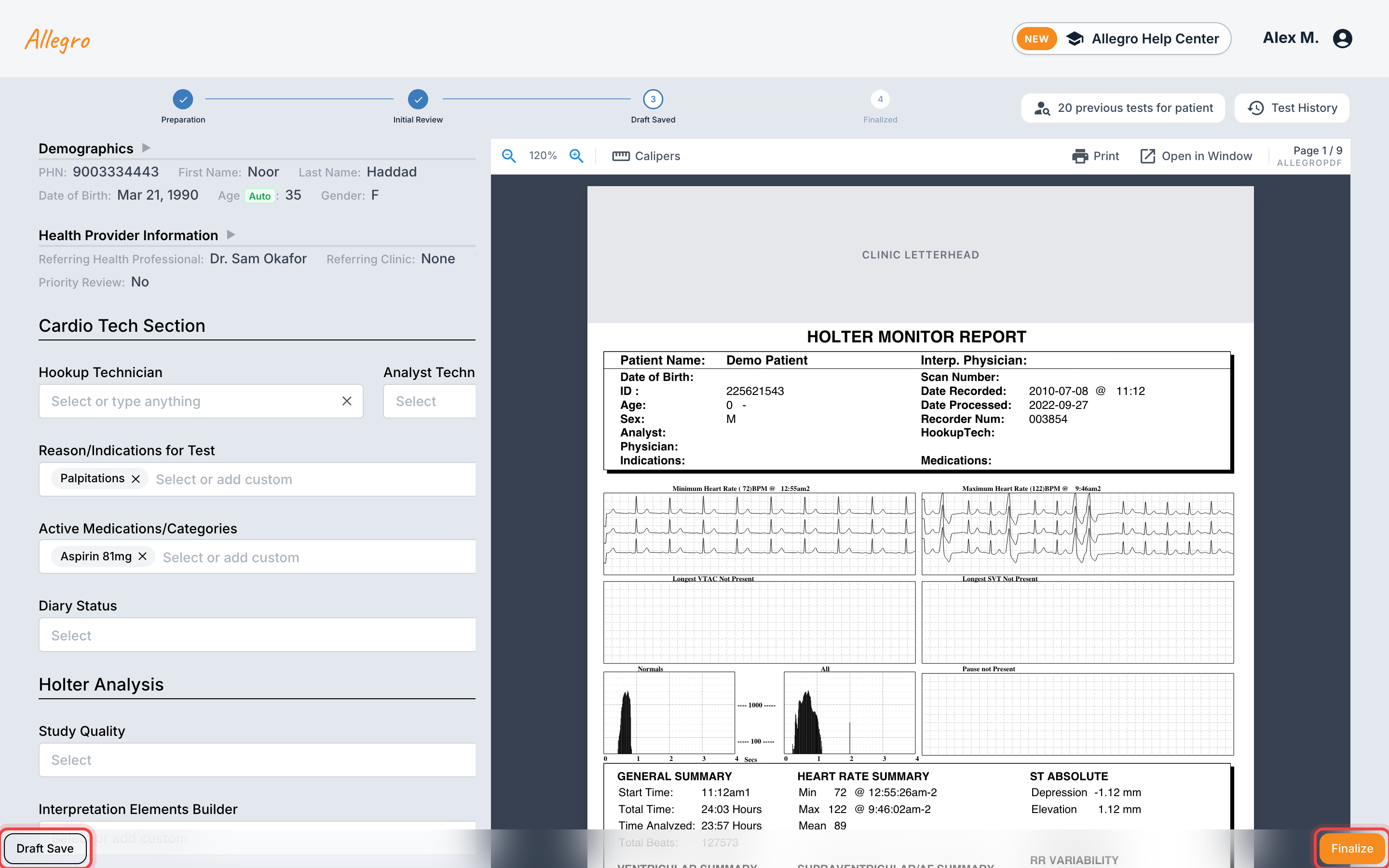
- Not finished yet, or want a colleague to check? → Save a draft
- Ready to sign? → Finalize